What is two-factor authentication (2FA) and why is it needed?
Two-factor authentication is essential for the security of personal data and accounts. In this article, we’ll explore how it works, the types of second factors, and share recommendations for using two-factor authentication.
Table of Contents
What is 2FA?
Two-factor authentication, or 2FA, is a way to verify a user’s identity through a two-step verification process using something that only the account owner can access.
The first stage of 2FA is something you know (your password), and the second is something you have (one-time codes from SMS, authenticator apps), or something that’s part of you (biometrics). Because of its discrete nature, two-factor authentication is very difficult to bypass, significantly increasing security.
The concept of authentication is often confused with authorization and identification, which is not entirely correct.
Identification is the initial process of recognizing a person or device by an information system using a unique identifier (login, email, phone number, or ID). This is the answer to the question “Who are you?” and allows the user to be distinguished from others, but does not confirm their authenticity.
Authentication is the process of verifying the identity of a subject (person, device, or program) before granting access to protected resources. It is a fundamental element of cybersecurity and utilizes logins/passwords, biometrics, or one-time codes.
Authorization is the process of granting access rights and verifying a user’s authority in a system after authentication. It determines which actions (reading, editing, and deleting) are permitted, ensuring data security. Authorization follows login (identification) and ensures adherence to the principle of least privilege.
In other words, authentication means that the user’s identity is not only established (this is identification, in which the system matches identification data with a record in the database), but also confirmed, which, in turn, guarantees access to the user’s personal account or the ability to perform certain actions available only to authorized users.
In addition to two-factor authentication, there is also multi-factor authentication (MFA). They operate in the same way, but the difference lies in the number of steps: with 2FA, there are two, while with MFA, there can be more.
For example, when logging into your bank account without additional authentication levels, you only enter your username and password; with 2FA, you also enter a code from an SMS; with MFA, after the one-time code, the bank may also request an answer to a secret question.
Why do you need two-factor authentication?
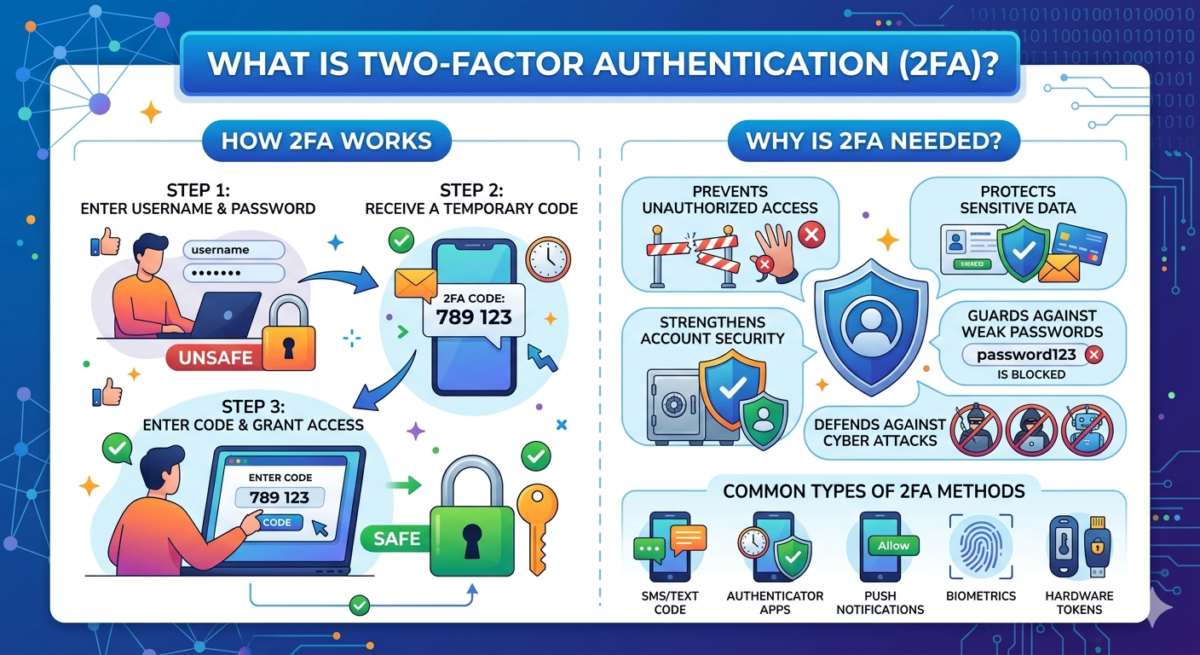
First and foremost, two-factor authentication is necessary for security. Passwords can be compromised or hacked, especially if they’re simple or used across multiple accounts. Two-factor authentication significantly complicates attackers’ lives, as they need access to the user’s device, email, or authenticator app in addition to their password, which is significantly more difficult.
At the same time, the validity period of one-time confirmation codes (Time-based One-Time Password, TOTP) rarely exceeds 1 minute, which also makes unauthorized access difficult even if the temporary code becomes known to attackers.
Where 2FA is needed:
- personal mail
- messengers and social networks
- cloud and ecosystem services
- banking and financial resources
- corporate and work accounts
- any service with important data
How two-factor authentication works
With two-factor authentication enabled, access to your account is achieved through two steps, or factors. Broken down into steps, the process looks like this:
First stage (knowledge factor)
1. The user enters their login and a permanent, pre-set password for their account. The system compares the entered data with the data in its database to determine whether the user exists. First-level identifiers can be easily stolen by attackers, so the user must prove that they are the one attempting to access the account. This initiates a second-level verification process.
Second stage (ownership factor)
1. The system prompts the user to confirm their identity using a key that they own, and that is much more difficult for attackers to access.
2. Account ownership can be proven:
- one-time codes from authenticator apps with a limited validity period;
- one-time password from SMS messages or email;
- by scanning biometric data (fingerprint, facial recognition);
- a hardware (physical) security key connected via a port-connector or wirelessly (near-field communication, NFC).
3. If the user completes the authentication process, they gain access to their personal account and all available actions within it.
What two-factor authentication options are available?
SMS code
An SMS code is a one-time password with a limited validity of 30-60 seconds. It’s universal, as it works on any phone and doesn’t require a special app or settings. However, due to its simplicity, the SMS code is one of the least secure authentication options.
It can be intercepted by attackers through an attack on the SS7 (Signaling System 7, also known as SS7) telephony signaling protocol suite, which is used to transmit SMS messages. Developed in the 1970s, this protocol suite is convenient and a standard, but it contains numerous vulnerabilities. The code can also be intercepted by fraudsters through SIM card substitution, or SIM swapping—attackers can reissue someone else’s SIM card, convince the mobile operator that the original has been lost, and then receive confirmation codes on it.
Authenticator app
Codes from authenticator apps —Yandex Key, Google Authenticator, and others. Confirmation codes in these apps are generated offline directly on the user’s device, protecting against one-time password interception over the network. These codes are independent of the carrier, preventing phone number and internet interception, and their limited validity period of no more than 30-60 seconds provides a good guarantee against phishing, since even if an attacker learns the password, they will still be unable to log in without the code.
The downsides of this method include some complexity in setup—the one-time password generator must be manually configured separately for each service—and the device on which the app is installed is tied. You must have your phone handy every time you authenticate, and if it’s lost or damaged, you can lose access to your accounts unless you’ve saved backup codes.
Hardware keys
Hardware tokens are physical devices that store or generate one-time passwords. This “what you have” approach guarantees an extremely high level of security, as without physical access to the hardware token, an attacker cannot intercept the one-time password. Another major advantage of this verification method is its extreme cryptographic resistance to phishing. The token binds authentication to a specific URL via the FIDO2/U2F protocols, so even if the user enters the password on a phishing site, the token will not automatically sign the request, as the site’s address does not match the real one.
Among the disadvantages, it’s worth noting that to use a hardware key, you must physically have it in hand. Losing or breaking the token blocks access to your accounts until a replacement is found. Not all services and resources support hardware security keys, and unlike software keys, hardware keys are expensive—physical keys must be purchased.
NFC keys
Wireless/NFC keys are also physical devices, so their list of advantages is the same as that of hardware keys. However, unlike hardware keys, wireless keys connect contactlessly, making them more convenient for mobile devices—unlike hardware keys, which require a port and are therefore typically used with a computer.
The disadvantages of wireless/NFC keys are identical to those of hardware tokens: they must be carried with you, and if lost or damaged, they cannot be used. Not all resources support hardware keys, including wireless/NFC options.
Behavioral mechanisms
Multifactor behavioral authentication is based on user behavior analysis. The system can evaluate the device used to log in, the browser used, the user’s geographic location at the time of login, their mouse movements, or typing speed, and compare this and other data with the account owner’s typical behavior patterns, identifying deviations, unusual actions, and so on.
This authentication approach is more convenient for the user—verification occurs in the background, and access confirmation is generally only required when deviant behavior patterns are detected. However, this method is technically complex, and not all resources can use it.
Biometrics
Biometric data (fingerprint, facial recognition) is another second-stage authentication method. It offers a high degree of user convenience: no need to remember a password or generate a one-time password, the verification tool is always with you, recognition speed is high, and a person’s unique facial features or fingerprints are difficult to forge.
Among the disadvantages are the risk of technical failures and false positives (for example, if your hands are dirty or wet, the system may not recognize your fingerprint), as well as the fact that if the biometric database is hacked, replacing them is problematic—for example, you can replace a right-hand fingerprint with a left-hand fingerprint, but you cannot replace a facial scan.
Email is a popular method for receiving one-time passwords to the email address provided during registration. The advantages of this method include the speed of sending confirmation codes and the ability to receive the password code to a backup email address provided by the user in advance.
However, this method is quite unsafe, as the password can be intercepted by attackers when hacking the user’s email.
QR code
QR code — scanning a QR code on a device’s screen allows you to log in to a resource using the mobile app’s camera. This provides a high level of security, eliminating the need to enter a password on other people’s devices and preventing data theft, as this method requires physical access to an unlocked phone.
One downside is the risk of phishing if you’re not vigilant enough. Scanning a fake QR code can allow an attacker to hijack your session and gain full access to your account. Therefore, it’s important to scan codes only on official websites and in official apps.
How to enable and configure 2FA
Enabling and setting up two-factor authentication is generally the same regardless of the second factor selected by the user. Below is a quick cheat sheet on where to get one-time verification codes when you need them.
1. In your personal account, profile settings, or the “Security” section, select “Two-factor authentication”;
2. Select a verification method:
- Authenticator app: Scan the QR code that appears on your device screen.
- SMS messages: enter the phone number to which one-time confirmation codes will be sent;
- Email: specify the current address to which the service will send passwords.
- Biometric data: perform a face or fingerprint scan;
- Hardware keys: select “Add security key”, insert the device into the USB port, or bring the NFC token to the reader module;
3. Confirm activation:
- Authenticator app: Enter the one-time code generated by the app.
- SMS messages: enter the password from the verification message.
- Email: Enter the passcode from the email.
- Biometric data: confirm identity by re-scanning.
- hardware keys: press a button or touch the key’s touch panel, set a PIN code;
4. Save the backup codes that the service provides.
How to restore access if the second factor is lost
For security reasons, the company, like DDoS-Guard, does not disable the second authentication factor on its side at the client’s request—only the profile owner can do this. However, the company’s experts have compiled several tips on what to do if access to the second factor is lost.
If your phone with Google Authenticator is lost or damaged, and you have a Google account associated with it, you need to install the app on a new device and sign in to your account. The Google ecosystem will automatically pull your old codes to the new device, and access will be restored.
If you don’t have a Google account, we recommend restoring it using the authentication service’s own backup codes. In this case, you’ll need to enter one of the 8-digit one-time codes you received when setting up 2FA instead of the code from the app. Then, reconfigure the authenticator on the new device and be sure to save the new backup codes.