
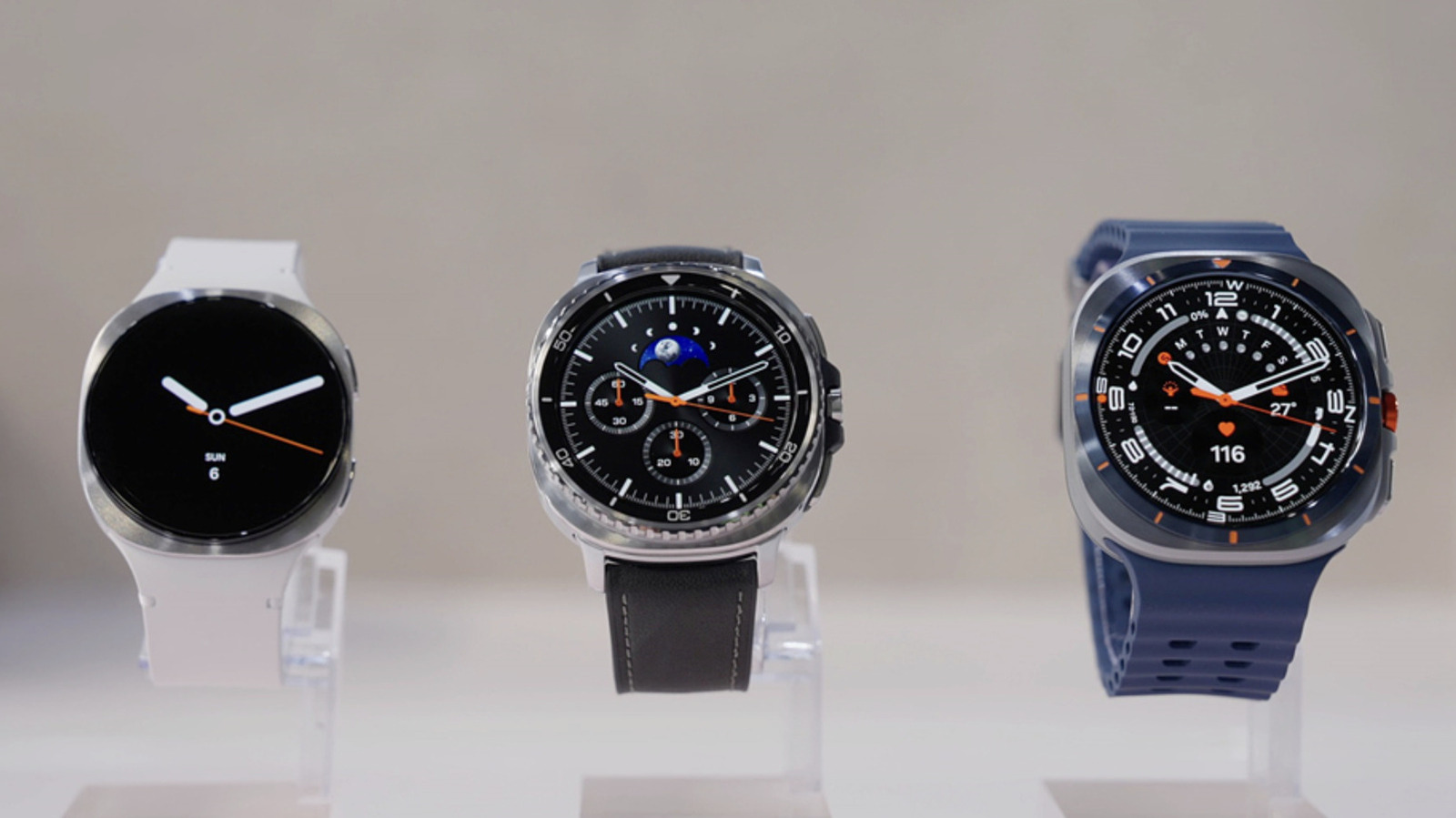
You are not limited to using Samsung pay because it is a Galaxy Watch
Yes, you can tap your Samsung Galaxy Watch to pay for purchases and transportation with cards saved in your Google Wallet. You just have to set it up and make sure you meet a few criteria. First, both Google Wallet and its tap-to-pay capabilities must be available in your location. They are already supported in the US, and you can check the Wallet help page to see if they have been released in your area.
Second, your Galaxy Watch must be running Wear OS version 2.0 or newer, which disables Samsung’s Tizen-powered Galaxy Watch 1, 2 and 3 models. If you have a Samsung Galaxy Watch 4 or a later model, continue to follow our instructions below. To check if you have a supported device, swipe down on your smartwatch, go to Settings and tap “About watch.” From there, you can find its Wear OS version under “Software information.”
How to install Google Wallet on your devices
- On your Galaxy Watch, swipe up to access your app drawer and open the Google Play Store. Search for Google Wallet and add it to your wearable.
-If you don’t have a lock screen yet, you will be prompted to set one. You can choose between a pattern and a PIN. A screen prompting you to check your phone will appear on your watch as the Wallet apps between the devices sync. If you choose Pin, check “Unlock without tapping after pin is entered” so you don’t have to click the OK button or the check mark every time you enter your pin. - Do the same on the Android phone connected to your watch. Just download and install Google Wallet from the Google Play Store.
 Screenshot by Mariella Moon (Samsung)
How to add a payment method to your Samsung Galaxy Watch
- Tap the “+” tile on your Galaxy Watch and check the Wallet app on your phone to add a payment card.
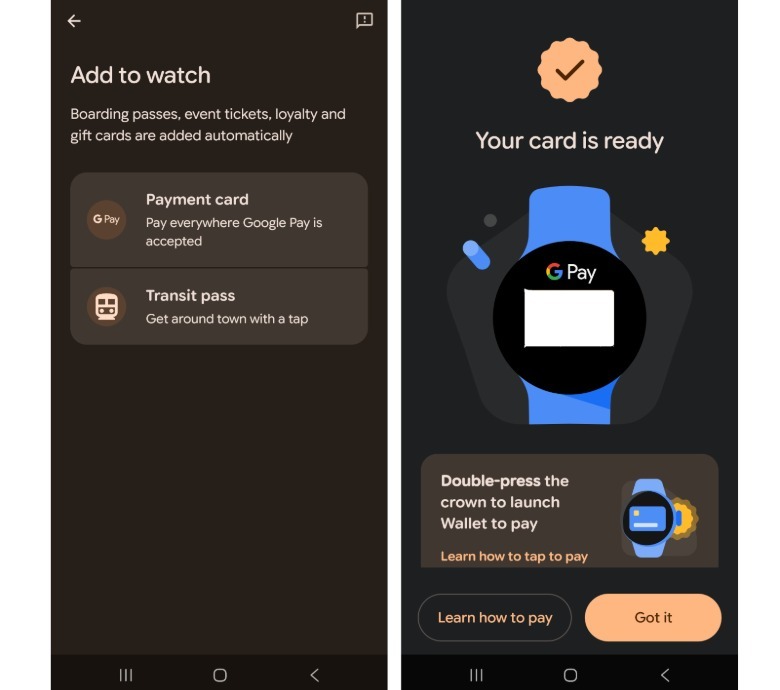
- On the “Add to view” screen on your phone, you can see the option to add a card.
- Here, you can select one of the cards you previously saved on Google Play to sign up or make an in-app purchase. The Wallet app will ask for some card information to verify, such as its CVV, expiration date or cardholder name.
- You can also add a new credit or debit card. If you choose this, you can scan the card to automatically retrieve its information or type in the information manually.
- After selecting or adding a card, the Wallet app will verify with your bank whether you can use that card to Tap to Pay. Not all cards and banks support the ability. You can check the Google website for all the cards and banks based in the United States. If you are not in the US, just select your state from the drop down menu.
- Once you’ve linked a supported card, you’ll see a screen in your phone’s Wallet app telling you that your card is ready. It also links to instructions on how to use the tap to pay feature.
- On your Galaxy Watch, you will now see the card you added in the Wallet app. The first card you add will be your default purchase card for payment, but you can change it by tapping on your preferred card and selecting “Make default.”
How to use Tap to Pay to make purchases
- You can only pay without unlocking your smartwatch if you have a Pixel Watch 2 or newer Pixel device.
- On the Galaxy Watch, you’ll need to turn on your device, open the Google Wallet app, turn your wrist and hold the face of the smartwatch next to the card reader. You should do the same with public transportation, but the reader at the gate or door should definitely support Tap to Pay.
- You will know if the payment is successful when your smartwatch vibrates, makes a sound and shows a blue check mark on its screen.
- Note that you can pay with a non-default card: Just swipe up on the card you want to use in your watch’s Wallet app and wait for “Charge to reader” to appear.
If you are in Japan…
- In Japan, Google Wallet also supports Suica and PASMO prepaid IC cards. However, you can only use them with smartwatches purchased in Japan, as those devices support Sony’s FeliCa contactless technology.
- For Samsung, the models that support FeliCa are the Galaxy Watch 6, Galaxy Watch 6 Classic, Galaxy Watch 7, Galaxy Watch 8, Galaxy Watch 8 Classic and Galaxy Watch Ultra.
- To add a Suica or PASMO card, tap “Add” in the Wallet app on your watch and select one. You can also add money to prepaid cards within the app.


