Using scrcpy to transfer images and control Android from a computer
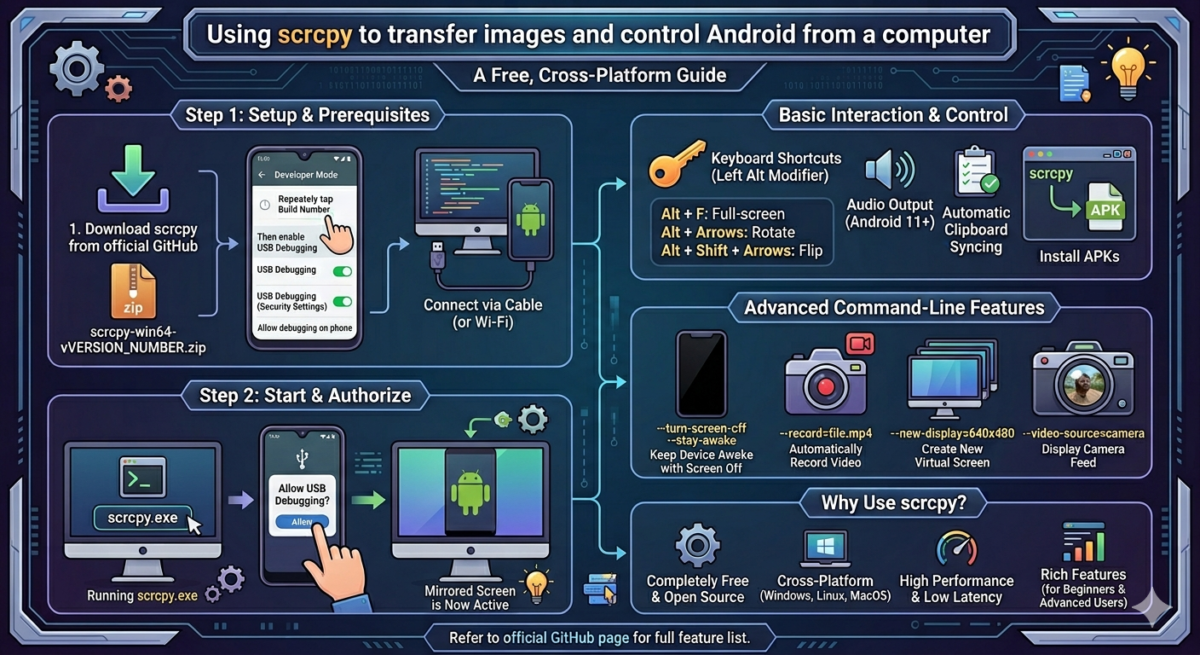
Table of Contents
There are many third-party tools that allow you to stream and control images from your Android phone or tablet to your computer, from built-in ones like Windows Phone Link or Simple Wireless Cast to third-party utilities.
Scrcpy is a free, cross-platform (Windows, Linux, and MacOS) app for mirroring your Android screen to your computer, with remote interaction and additional features. More on this in the article below.
Using scrcpy
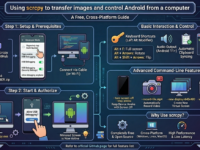
As noted above, scrcpy is a cross-platform application, but below we’ll discuss its use on Windows 11/10 and other operating systems. First, let’s look at what you’ll need:
- Download the latest version of scrcpy from the official website and unzip the archive to a convenient location. For Windows x64, you’ll only need the archive.
scrcpy-win64-vVERSION_NUMBER.zip - Enable USB debugging on your Android device. First, enable Developer Mode, then enable USB debugging in Developer Options. This usually involves repeatedly tapping the “Build Number” (or “MIUI Version”) in the “About Phone” > “Software Information” section of the settings. You’ll then see a notification that you’ve become a developer, and a new “Developer Options” section will appear in the settings menu where you can enable USB debugging.
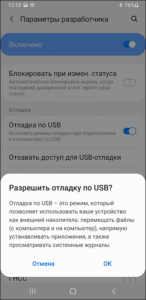
- In some cases, if you have this setting in the developer options, you may also need to enable the additional option “USB Debugging (Security Settings)”.
- Connect your smartphone or tablet to your computer using a cable. You can also use Wi-Fi debugging (before starting the broadcast, connect using the .exe file located in the scrcpy folder).
After this, you can start using scrcpy.
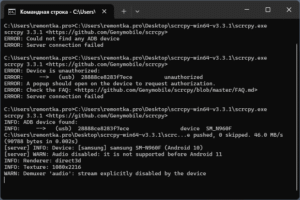
The scrcpy utility is designed for use in the command line, but you can also simply run the executable file (scrcpy.exe) from the unzipped archive. When you first run the program, a message will appear in the program output prompting you to authorize the device, and a corresponding prompt will appear on your phone or tablet screen—allow the connection. When you run it a second time, the connection will be established automatically, and you’ll see your device’s screen on your computer screen, complete with control options, audio output (Android 11 and later), and automatic clipboard syncing.
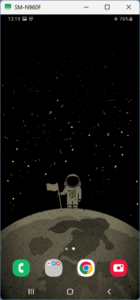
Below is an example of a command-line connection: the first command and result are disabled debugging, the second is the authorization stage, and the third is a successful connection:
You can use keyboard shortcuts while working. By default, the left Alt key is used as the modifier key in Windows, and the following functions are available: full-screen mode ( Alt + F ), image rotation ( Alt + left or right arrow ), image flipping ( Alt + Shift + arrow ), and a set of other hotkeys for easier control and other actions.
To install the APK on your device, you can simply drag and drop it onto the scrcpy window.
These steps are sufficient for basic Android screen mirroring on your computer and basic device control, and to stop broadcasting, simply close the scrcpy window on your computer.
However, the utility’s capabilities are not limited to this. Using command line parameters, you can:
- Broadcast when the device screen is off:
scrcpy --turn-screen-off
scrcpy --turn-screen-off --stay-awake
- Automatically record video while broadcasting:
scrcpy --record=file.mp4
scrcpy -r file.mkv
If necessary, you can record only video or only audio:
--no-audio
--no-video
- Don’t copy the device’s main screen, but create a new virtual screen that will be displayed on the computer:
scrcpy --new-display=640x480
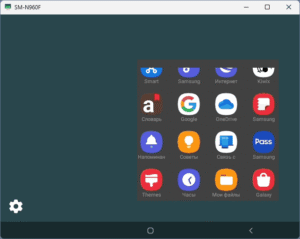
- Automatically launch the desired application on a new screen:
--start-app=org.videolan.vlc - Set quality, resolution, and FPS parameters. A list of commands is available in the official help.
- Display the camera image instead of the screen (Android 12 and later)
scrcpy --video-source=camera
The full list of features is on the official GitHub page.
Given all its capabilities and qualities, scrcpy is one of the best tools for working with the Android screen and the device itself from a computer.
The basic version is suitable even for beginner users, and the advanced features will be useful for those who need them and are ready to work in the command line interface.