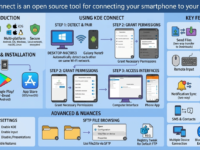
KDE Connect is an open source tool for connecting your smartphone to your computer.
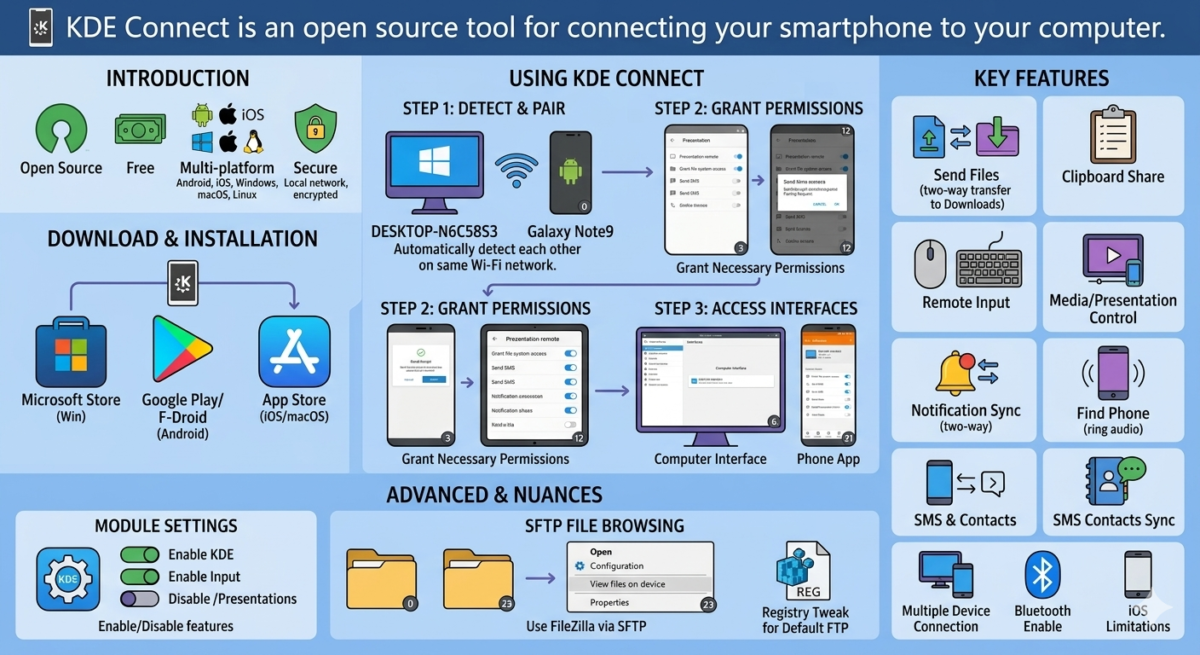
Table of Contents
The topic of connecting an Android smartphone or iPhone to a computer has been raised on this site more than once. This can be done using both built-in Windows (or MacOS) tools and third-party programs.
KDE Connect is a free, open-source, multi-platform tool that lets you connect your Android or iOS device to a Windows, MacOS, or Linux computer over a local network or Bluetooth.
Download and installation
The KDE Connect download page for all supported platforms is available on the official website. You can:
- For Windows, download the app from the Microsoft Store.
- For Android, use Play Market or F-Droid.
- For iPhone and MacOS, find the app in the App Store
Installing the application should not cause any problems, except that the desktop versions may require you to allow access to the local network.
KDE Connect’s features vary depending on the platform used, and the most functional combination is Linux + Android (or Linux + Linux). However, for this review, we’ll focus on the more common setup—Windows + Android. It has slightly fewer features and a few more bugs (at least in the current version), but it’s still worth considering.
Using KDE Connect
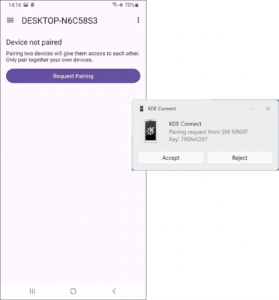
Once KDE Connect is installed on both Windows and Android, and provided both devices are connected to the same network (e.g., the same Wi-Fi router), the apps will detect each other on the network, and you can send a pairing request from your phone and confirm it on your computer:
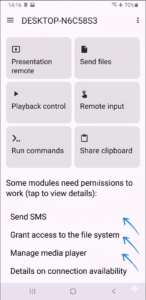
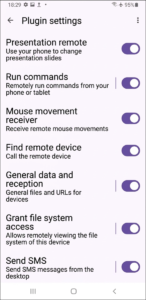
The next important step in the case of Android is to grant the necessary permissions for the features you will be using:
Once all this is done, you can start using it both in the interface on your phone and in the program on your computer:
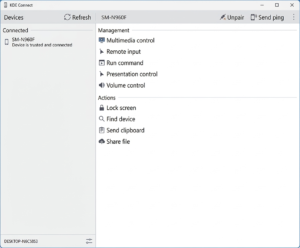
KDE Connect (in conjunction with Android and Windows) offers the following useful features, most of which work in both directions:
- Send files from your phone to your computer or from your computer to your phone (by default, they are saved to the Downloads folder of the corresponding device).
- Transferring clipboard contents.
- Mouse control and remote input that works in both directions.
- Control audio and video playback on another device, or control presentations.
- Receive notifications from your phone to your computer or from your computer to your phone.
- Play audio on your phone (to find it) from your computer.
- Send SMS messages from your computer via your phone, and synchronize contacts between devices.
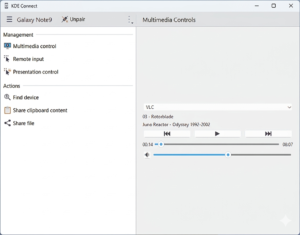
You can enable or disable the interaction modules used in the application menu on Android (item “Module settings”)
As noted earlier, the Windows version of KDE Connect has some bugs (at least at the time of writing), most notably a non-functional module management button in the main desktop program window. The solution is to use the “Configuration” option in the context menu of the notification area icon:
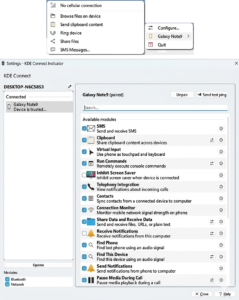
You’ll also find other useful options there, including sending SMS and “View files on device.” The latter requires an FTP client configured as the default in Windows and connects to the Android storage via SFTP:
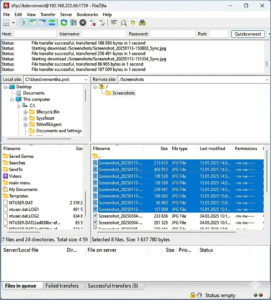
In the example above, I used FileZilla, but the program doesn’t allow you to set itself as the default SFTP protocol. To achieve this (in Windows 11, but it should work in Windows 10 as well), I used the following REG file:
Windows Registry Editor Version 5.00

[HKEY_CLASSES_ROOT\sftp]
@="URL:SFTP Protocol"
"URL Protocol"=""

[HKEY_CLASSES_ROOT\sftp\shell]

[HKEY_CLASSES_ROOT\sftp\shell\open]

[HKEY_CLASSES_ROOT\sftp\shell\open\command]
@="\"C:\\Program Files\\FileZilla FTP Client\\filezilla.exe\" \"%1\""
The folder to which the connection is made is configured in the “Module settings” on the Android device in the “General data and data reception” section (the “Target directory” section).
Unlike most other programs of this kind, KDE Connect doesn’t use any third-party servers or require internet access—everything runs on your local network and is encrypted.
Additional information
Some additional nuances that may be useful when using KDE Connect:
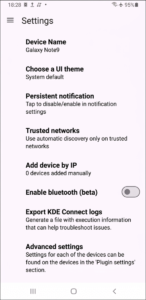
- To use Bluetooth, you’ll need to enable it in the KDE Connect app settings on your smartphone (it’s enabled by default on your PC). You can also set up trusted networks, connect devices via IP, and configure the device name.
- The connection can be made to more than one device, and it does not necessarily have to be a connection between a stationary and a mobile device.
- iPhone doesn’t support SMS sending, notification syncing, connection support (when the app is minimized), or virtual display. Some features only work in one direction: from iOS to the computer (input, presentation management, clipboard, and command execution).
- Android does not support the virtual display function; some commands are only supported from the phone to the computer: sending contacts, managing presentations, and executing commands.
Some additional materials that may be useful in the context of the topic under consideration.