Connecting to your phone in Windows 11 and 10
This article covers how to connect your phone to your computer, what features are available in the app, and additional information that may be useful.
Setting up the connection
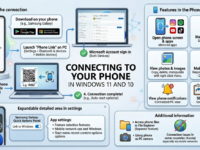
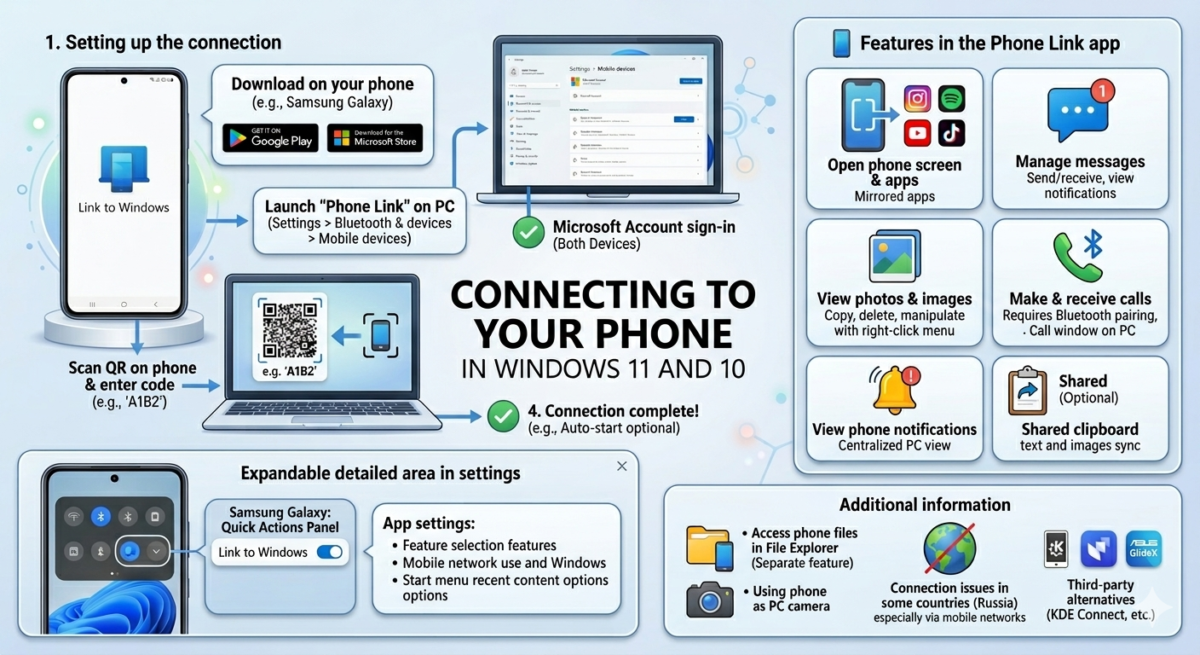
First, let’s take a detailed look at how to link your computer and smartphone using the Link to Phone app. The steps are provided for Android phones; separate instructions are available for iOS.
Download (or update, for example, if the app is preinstalled on a Samsung Galaxy) the Link to Windows app on your smartphone. The app is available in the Play Store.
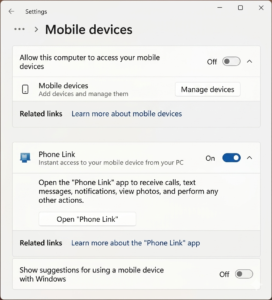
Launch the “Link to Phone” app on your computer. It’s usually preinstalled and can be found through a search. If not, go to Settings – Bluetooth & devices – Mobile devices, and enable “Link to Phone.” If the app isn’t installed, you’ll see an install button below. You can also download the app from the Microsoft Store.
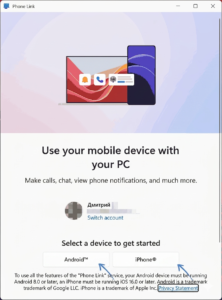
The app will require you to use a Microsoft account (if you haven’t already signed in), and you’ll also be asked to select your device type: Android or iPhone. Select the appropriate option.
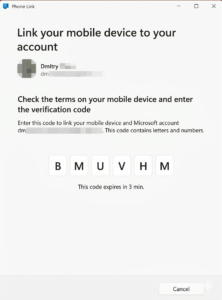
A QR code will be displayed on your computer screen. Scan it and open the link using the Link to Windows app (you will also need to sign in to your Microsoft account). After this, a letter code will be displayed on your computer screen, which you will need to enter on your phone.
Wait for the connection to complete. When you first connect, you’ll be prompted to enable the app to auto-start upon login—this is up to you (you can enable it later if you wish).
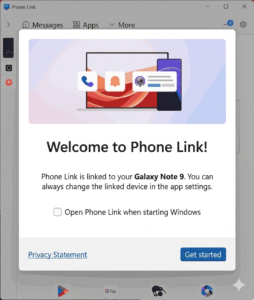
If everything goes well, the connection will be established, and you can start using it.
A few notes:
- Although Link to Phone supports connecting to your phone when using its mobile network, use the same local network for initial setup (for example, both devices are connected to the same Wi-Fi).
- If you’re having trouble connecting, go to the Downloads section of the Microsoft Store and install updates for the Device Interaction Hub and Link to Your Phone apps.
Features in the Phone Link app
As noted, the focus of this material is on interaction with Android devices. Phone communication for iPhone has some limitations.
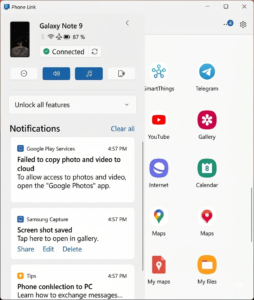
The application interface is simple and provides the following features (please note that some of them may require you to grant the appropriate permissions on your smartphone):
Opening the phone screen and launching applications from your phone (in fact, also opening the screen, but with the application running).
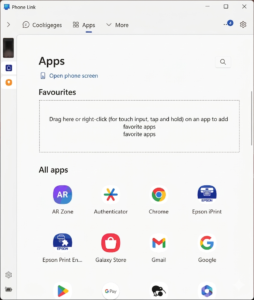
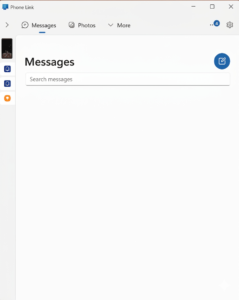
Manage messages from your computer: not only send and receive messages, but also receive notifications about them in Windows when your phone is connected.
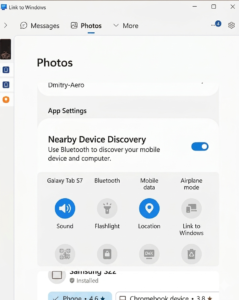
View photos and other images from your phone with the ability to manipulate them in the right-click menu (copy, delete, etc.).
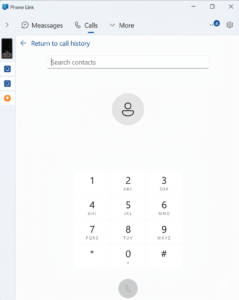
Make and receive calls from your computer via your phone (requires pairing the devices via Bluetooth).
View notifications from your phone.
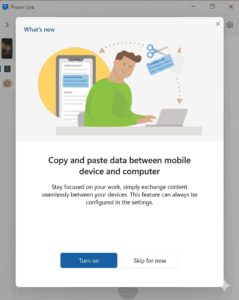
Another feature that is disabled by default (you’ll be prompted to enable it, or you can do so in the app settings) is the shared clipboard:
In the “Link to Phone” app settings, you can:
- Select the features you need and disable those you don’t.
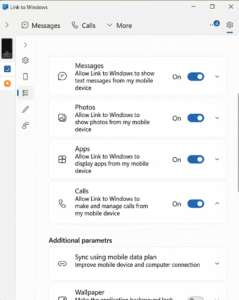
- Enable the ability to use the app when your phone is connected via your mobile operator’s network.
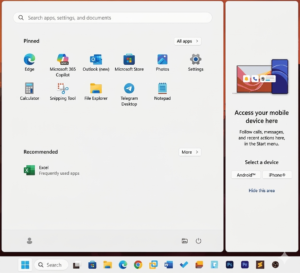
- Enable or disable notification icons and the recent content panel in the Start menu.
Similar settings are available in the Link to Windows app on your phone, and on Samsung smartphones, you can enable or disable the feature in the Quick Actions panel:
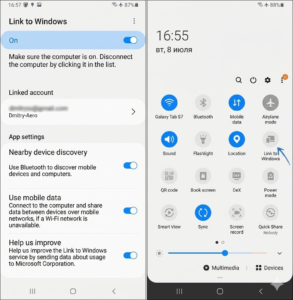
All of this works great with new devices and is easy to use. However, connecting older smartphones and laptops/PCs can be problematic. Some users also report other issues, such as successfully establishing a connection initially but failing to connect after a reboot.
Additional information
Some additional nuances of connecting a mobile device to a computer using Windows:
- In Windows 11 Mobile Devices settings, you may find a separate option called “Allow this PC to access your mobile devices.” This isn’t the same as linking to your phone, but it allows you to, for example, use your phone as a PC camera or access its files in File Explorer.
- When connecting in some countries like Russia, especially via mobile networks, there are problems caused by restrictions in effect at the time of the last update.
- Some users may receive a message about this feature being blocked. This is covered in a separate instruction: This feature has been blocked by your system administrator in Phone Communications.
In addition to built-in Windows tools, there are also third-party tools for linking phones and computers: KDE Connect (open source, cross-platform application), Intel Unison (there are reports that it will no longer be supported on most computers), ASUS GlideX, and others.