Memory modules were found on a non-optimized memory slot when the computer was turned on.
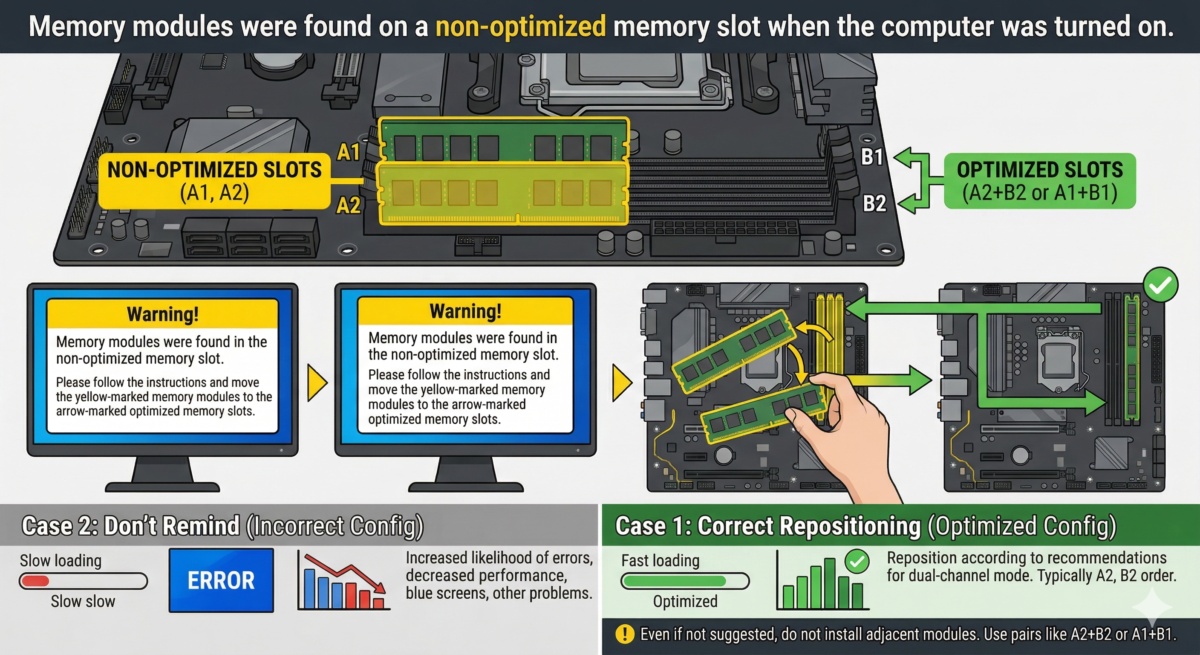
Table of Contents
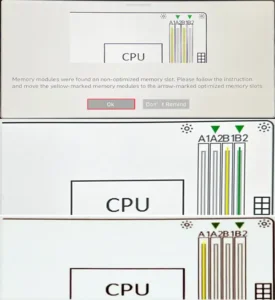
When turning on the computer after assembly or after any work inside the case, some users may see a screen with the message “Memory modules were found in the non-optimized memory slot. Please follow the instructions and move the yellow-marked memory modules to the arrow-marked optimized memory slots.”
This article explains what this message means, why it appears, and what you can do if you encounter it.
The memory modules are not located in the recommended slots.
The message “Memory modules were found in non-optimized memory slot” directly indicates that the installed RAM modules are not located in optimized slots on the motherboard.
Optimized here means those connectors that should be occupied first from the point of view and recommendations of the motherboard manufacturer for this model.
The following text, “Please follow the instruction and move the yellow-marked memory modules to the arrow-marked optimized memory slots,” translates to “Please follow the instruction and move the yellow-marked memory modules to the arrow-marked optimized slots.”
What you can do if you encounter this message:
- Select “OK” (if necessary, take a screenshot to save the recommendations), turn off and unplug the computer, and reposition the memory modules according to the recommendations. Typically, the slots are populated in the following order: A2, B2, A1, B. This is the recommended procedure.
- Select the “Don’t Remind” button and continue using your computer with the current RAM configuration.
If all the connectors for connecting RAM modules are working properly, I recommend using the first option.
Although everything may work without any visible problems in the second case, the likelihood of errors, decreased performance, blue screens, and other problems with RAM operation increases in this scenario.
Even if you have good reasons not to install the memory modules as suggested on the screen in question, even in this case, if you have two memory modules, do not install them in two slots located next to each other: on most motherboards, this can lead to the RAM operating in single-channel mode. Choose pairs A2+B2 or A1+B1.