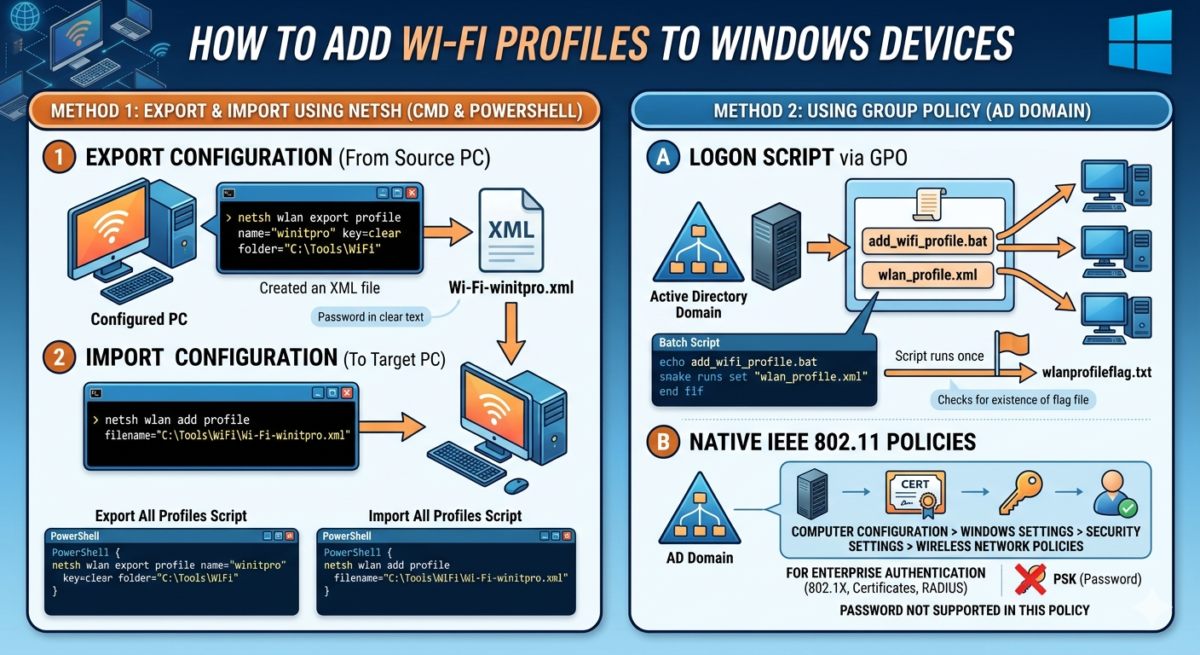
In Windows, you can pre-add the necessary wireless WLAN connection profiles to client computers. This allows devices to automatically connect to the desired Wi-Fi network when they detect it. This allows administrators to pre-distribute Wi-Fi connection settings to computers, eliminating the need to manually configure Wi-Fi on each computer (especially useful if the target wireless network is currently unavailable).
In this article, we’ll cover scenarios for exporting a configured Wi-Fi profile from one computer and importing the settings into another, as well as options for using Group Policy to distribute Wi-Fi profiles to devices in an AD domain.
Export and import a wireless (WLAN) connection profile in Windows using Netsh
Once you’ve configured a connection to your wireless access point on one computer, you can export these settings to an XML file and apply them to other computers. You can use the built-in netsh command-line utility for this.
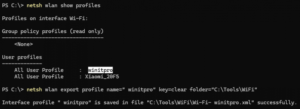
List configured saved WLAN profiles in the system:
netsh wlan show profiles
Export profile settings (by its name) to the folder:
netsh wlan export profile name="winitpro" key=clear folder="C:\Tools\WiFi"
This option key=clear specifies that the Wi-Fi hotspot connection password should be saved in clear text (when exporting the key in encrypted form, it is encrypted with the key of this computer and cannot be decrypted on another computer).
WLAN profile settings are exported to an XML file containing all connection parameters to the access point, including its SSID and Wi-Fi network password (in clear text).
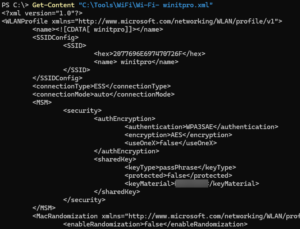
This XML file can be transferred to another computer, and the Wi-Fi profile can be imported using the command:
netsh wlan add profile filename= "C:\Tools\WiFi\Wi-Fi-winitpro.xml"
Verify that the new profile appears in the list of available profiles. By default, this Wi-Fi profile will be available to all users of the computer. If you want to import the WLAN profile settings only for the current user, add the parameter user=current :
netsh wlan add profile filename="winitpro.xml" user=current
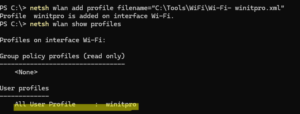
To set the priority for this WLAN profile to the highest, run the command (this will require the option to automatically switch to the best access point for your Wi-Fi adapter to be enabled ):
netsh wlan set profileorder name="winitpro" interface="Wi-Fi" priority=1
To connect to a Wi-Fi network in this profile from the command line, run:
netsh wlan connect name="winitpro"
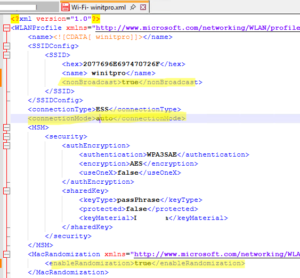
If necessary, you can edit this XML file manually to change the network SSID or key. The following options are also commonly used:
-
<enableRandomization>true</enableRandomization>— enable MAC address randomization for Wi-Fi connections -
<nonBroadcast>true</nonBroadcast>– if a hidden Wi-Fi network SSID is used -
<connectionMode>auto</connectionMode>– automatically connect to this wireless network when it is within range.
Using PowerShell, you can automatically export all saved Wi-Fi networks from one computer and import them on another computer:
Export all saved WLAN profiles to a folder:
$FolderPath = "$env:USERPROFILE\Desktop\WiFi"

if (!(Test-Path $FolderPath)) {

New-Item -Path $FolderPath -ItemType Directory

}

netsh wlan export profile folder="$FolderPath" key=clear
Copy the resulting folder to the desktop of another computer and import all WLAN profiles using the script:
$WiFiNetworks = Get-ChildItem "$env:USERPROFILE\Desktop\WiFi" | Select-Object Name

foreach ($network in $WiFiNetworks) {

netsh wlan add profile filename=$($network.Name) user=all

}
Adding Wi-Fi networks to devices via group policies
Using group policies, you can automate the addition of Wi-Fi profiles to client devices. You can use one of the following methods:
- A logon script in GPO that runs only once per computer and imports a Wi-Fi profile from an XML file.
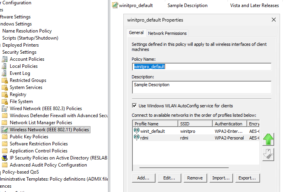
- Using native Wireless Network (IEEE 802.11) Policies – suitable for corporate networks with authentication via certificates or RADUIS. Does not allow distributing a password, also known as a pre-shared key (PSK), to clients for connecting to an access point.
Briefly, how to implement the first GPO logon script:
- Prepare an XML file with WLAN profile settings (create it manually or export it using
netsh wlan export profile) - Create a file, add_wifi_profile.bat with the script:
REM If the file C:\wlanprofileflag.txt exists, then the profile has already been imported, go to _END

IF EXIST C:\wlanprofileflag.txt GOTO _END

netsh wlan add profile filename="\\winitpro.ru\netlogon\Wi-Fi-profile1.xml" user=all >> C:\wlanprofileflag.txt

netsh wlan set profileorder name="winitpro" interface="Wi-Fi" priority=1

GOTO :EOF

:_END- This GPO startup script will be executed only once per computer by checking for the presence of the wlanprofileflag.txt flag file.
- Copy the XML and BAT file to a directory
NETLOGONon the domain controller - Create a GPO and configure this script to run when the computer boots up through the policies section, Computer Configuration > Policies > Windows Settings > Scripts (Startup/Shutdown)
- Learn more about running logon scripts in Windows via GPO .
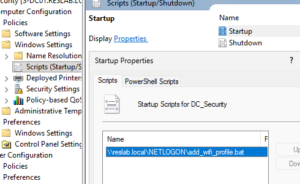
If enterprise Wi-Fi authentication is deployed on your network (for example, using NPS and RADIUS), WLAN connection profile settings can be distributed through the Computer Configuration -> Policies -> Windows Settings -> Security Settings -> Wireless Network (IEEE 802.11) Policies group policy section.
Unlike the previous method, this policy does not support the distribution of pre-shared keys (PSK, Wi-Fi connection password) within the network and is focused on enterprise-level authentication types, such as 802.1X using certificates or RADIUS username and password authentication. If you attempt to import an XML file containing a saved WLAN profile with a password into this policy, the password will be cleared.