Microsoft has finally brought back the resizable taskbar and Start menu in Windows 11 in the latest preview version from Insiders test channel.
Starting with Windows 11 Internal Preview Build 26300.8493, the taskbar can now be configured to use small buttons and move to the bottom, top, left, or right of the screen.
“The ability to move the taskbar to the top or sides of the screen has been one of the most requested features, and we’re bringing it to Windows 11,” said Diego Baca, associate director of Microsoft Design.
“With this update, where the small taskbar is enabled, you get smaller icons, a shorter taskbar, and more space for your apps (see video below). No restart or logout required.”
To change the position of the taskbar, Insiders should go to Settings > Personalization > Taskbar > Taskbar behavior, where they will find this new option next to the taskbar icon alignment option.
The size of the taskbar can be adjusted in the same dialog by checking the option “Show small taskbar buttons”, which reduces the height of both the icons and the taskbar.
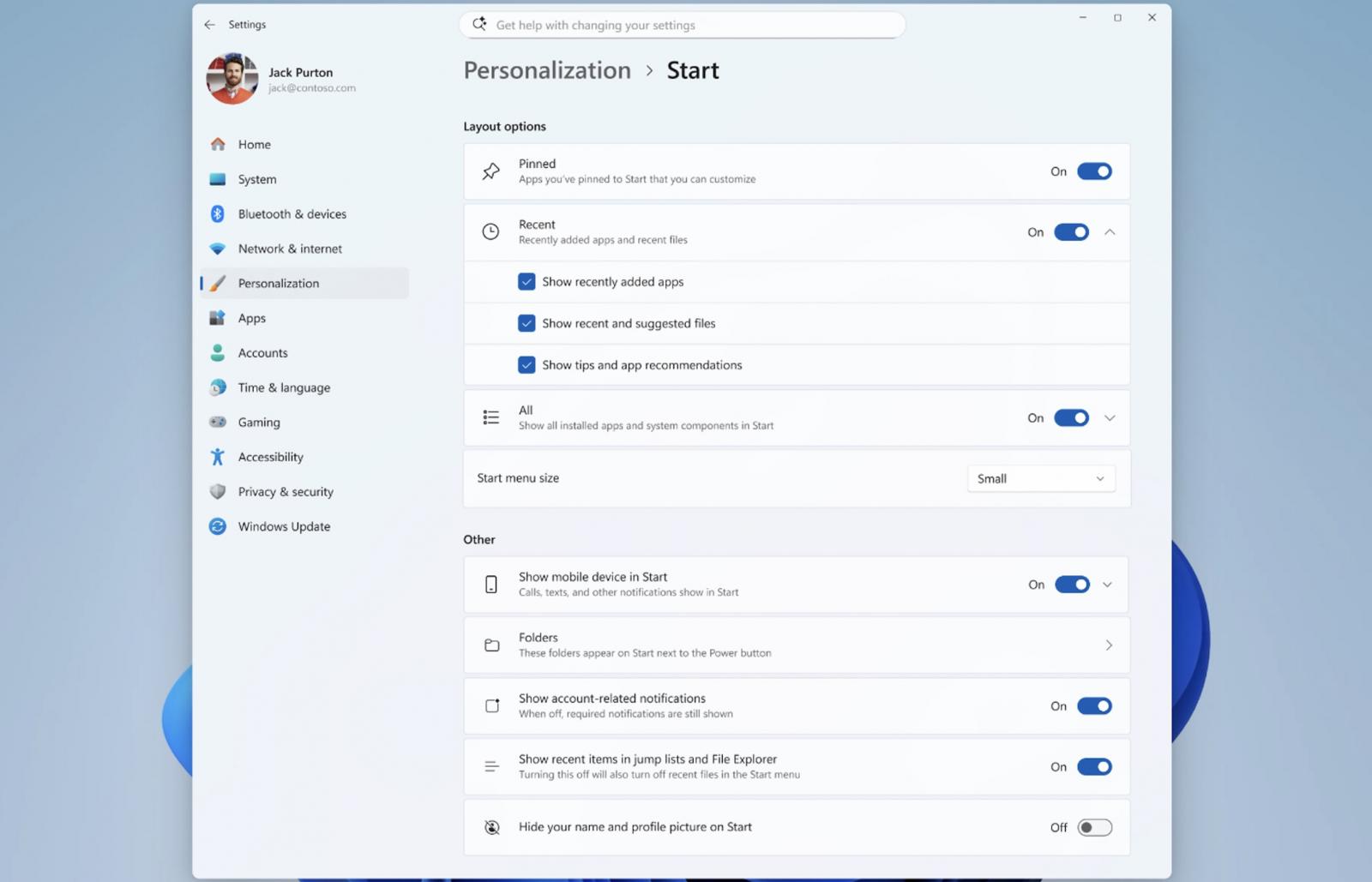
Microsoft also introduced changes to give Windows users more control over the Start menu, allowing them to remove recommended content and customize its size.
“These controls are designed to work together. If you want a start menu with your pinned apps, you can turn off Recommended and All,” Boca added. “If you want a full Start that shows everything, you can leave it open. The goal is simple: it’s your choice, and it should be easy to make.”
However, Microsoft will maintain a list of recently installed apps, as it is the main way for users to find new apps around the Microsoft Store.
In addition, Microsoft is improving file relevance by adjusting the way files are displayed and ordered to prioritize the most relevant items, and will allow users to hide their name and profile picture from the start menu.
Earlier this month, Microsoft also announced that it is testing a modern Windows Run box with dark mode support, which should be faster than the legacy version.
This new Run dialog will also remove the “Browse” button, which was used by only 0.0038% of users in a sample of 35 million who opened Windows Run. Microsoft says Modern Run won’t be enabled by default, and users will need to turn it on manually in Settings > Advanced Settings.
Windows president Pavan Davuluri announced some of these changes in March, when Microsoft promised to improve Windows 11 system performance and make it responsive and consistent.
In addition to taskbar and start menu improvements, the company plans to reduce notifications, simplify Windows settings, and ensure that device setup on new Windows PCs requires fewer reboots.
Microsoft is working to improve Windows search, aiming for consistent information across the Start menu, taskbar, File Explorer, and Settings.
“As part of this effort, we’re changing the way Windows is built on the back end to increase quality and deliver innovation where it matters most, shaped by the feedback we get from you,” Davuluri said.
Automated testing tools deliver real value, but they’re designed to answer one question: can an attacker deploy on a network? They are not designed to check that your controls are blocking threats, your firewall detection, or your cloud configs.
This guide covers the 6 areas you really need to verify.
Download Now