WhatsApp (from Meta) may still be best known as the first mobile messaging app, but its browser version has become more useful than ever. If you spend most of the day at a desk, typing answers with a full keyboard is easier than tapping on your phone screen. This is where WhatsApp Web comes in.
The service allows you to access your conversations using a laptop or desktop browser, giving you a larger view of your conversations and a more comfortable place to write, send files, and keep up with group discussions. It’s especially useful when your phone is charging across the room, buried in a bag, or you don’t want to keep switching devices every few minutes.
WhatsApp Web has also improved the functionality offered in the browser version of the popular application. It has received new features such as video messages, self-destructing voice messages, the ability to edit sent messages, and much more. While previous versions depended heavily on your phone being online at all times, multi-device support allows WhatsApp Web to continue working even if your phone is temporarily turned off. But you’ll still need your phone to reset.
However, there is still a little fishing. Since WhatsApp accounts are linked to phone numbers instead of usernames and passwords, you can’t just log in to WhatsApp Web like you can on most websites. You will need to connect your browser to your account through the WhatsApp app on your iOS or Android device, which means scanning a QR code or providing a way to enter a phone number.
Setup is very quick, and once you’re in, the web version feels very similar to the mobile app. You can send messages, share media, browse past conversations, and adjust privacy settings without having to learn a new interface. Here’s how to get started.
What you need
WhatsApp mobile application
iPhone or Android smartphone
The latest version of Chrome, Firefox, Microsoft Edge, Opera, or Safari
How to access WhatsApp Web from iPhone
The process of getting started with WhatsApp web using your iPhone is straightforward. Go to WhatsApp Web in Chrome, Firefox, Opera, Safari, or Edge and scan the QR code on a computer with the WhatsApp mobile app from your iPhone. WhatsApp Web will automatically start in the browser and remain active until you exit it on your computer or phone.
Step 1: On your PC browser, go to
Step 2: Open WhatsApp on your iPhone.
Step 3: Select the Settings menu on your iPhone in the lower right corner, and select Connected devices.
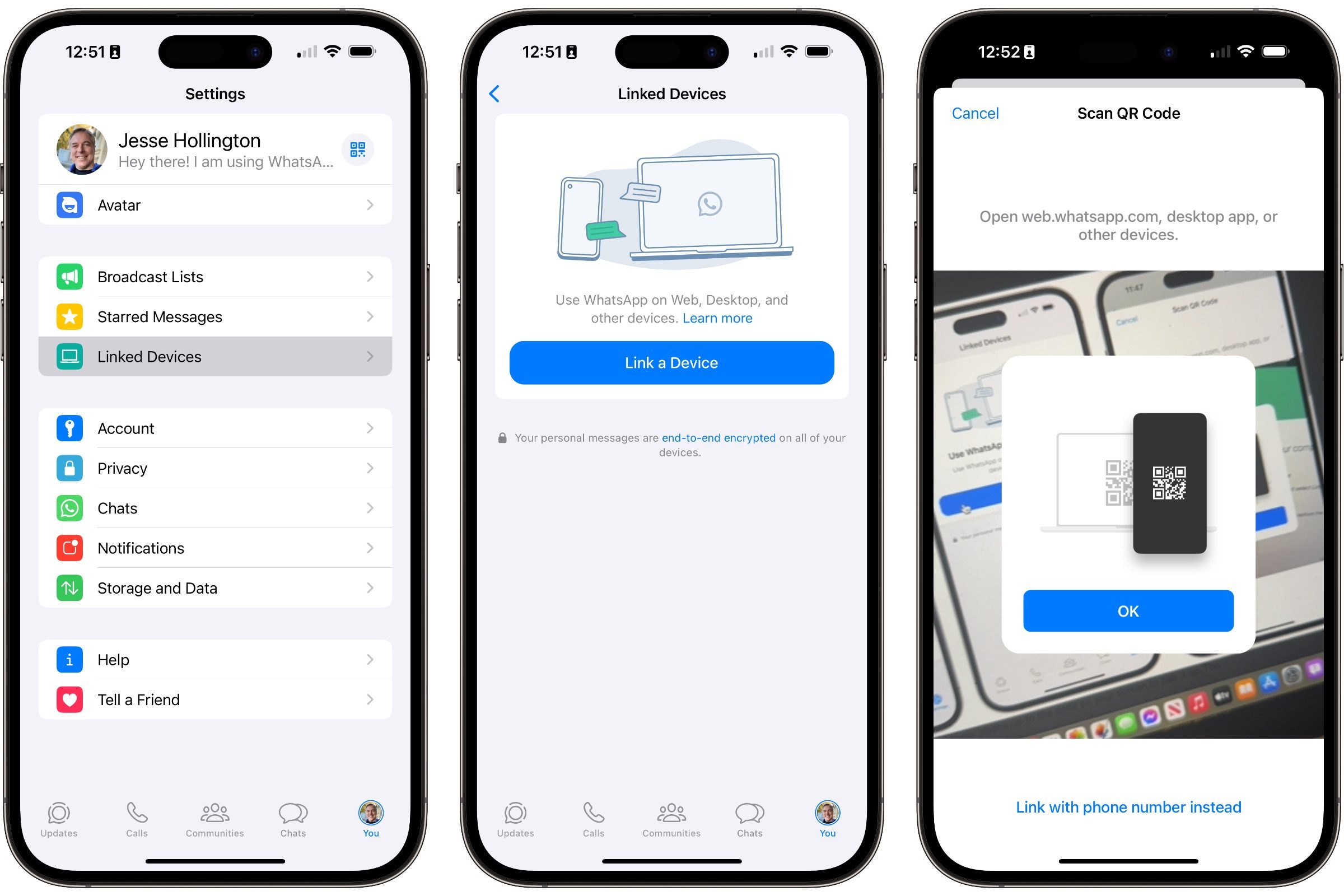
Step 4: hit the Connect the device button and authenticate with Face ID or Touch ID if needed. The camera view will open in WhatsApp.
Step 5: Hold your phone up to the code on your screen to pair it. The WhatsApp page in your browser should refresh immediately, import you, and display your current list of conversations.
How to access WhatsApp Web from an Android phone
On Android, the steps are the same and just as easy. So follow these steps after opening the WhatsApp website on your computer:
Step 1: Open WhatsApp on your Android device and select the three dots at the top right of the chat page.
Step 2: Select Connected devicesand select Connect the device. Use your fingerprint or enter your device’s passcode when prompted.

Step 3: Scan the QR code with your phone to pair it with your computer.
Step 4: Following the last step, your smartphone should be connected to WhatsApp Web, and the web page in your browser should refresh quickly to enter WhatsApp Web.
How to login to WhatsApp Web without QR code
Scanning a QR code on your iOS or Android smartphone is one way to log into WhatsApp Web. But you can also link by entering the phone number of your WhatsApp account, which will give you an eight-digit code to log into WhatsApp on your phone to verify the link instead. The steps for both iOS and Android are basically the same.
Step 1: On the WhatsApp Web login page, select Sign in with a phone number.

Step 2: On the next screen, enter the phone number of your WhatsApp account and select The next one.
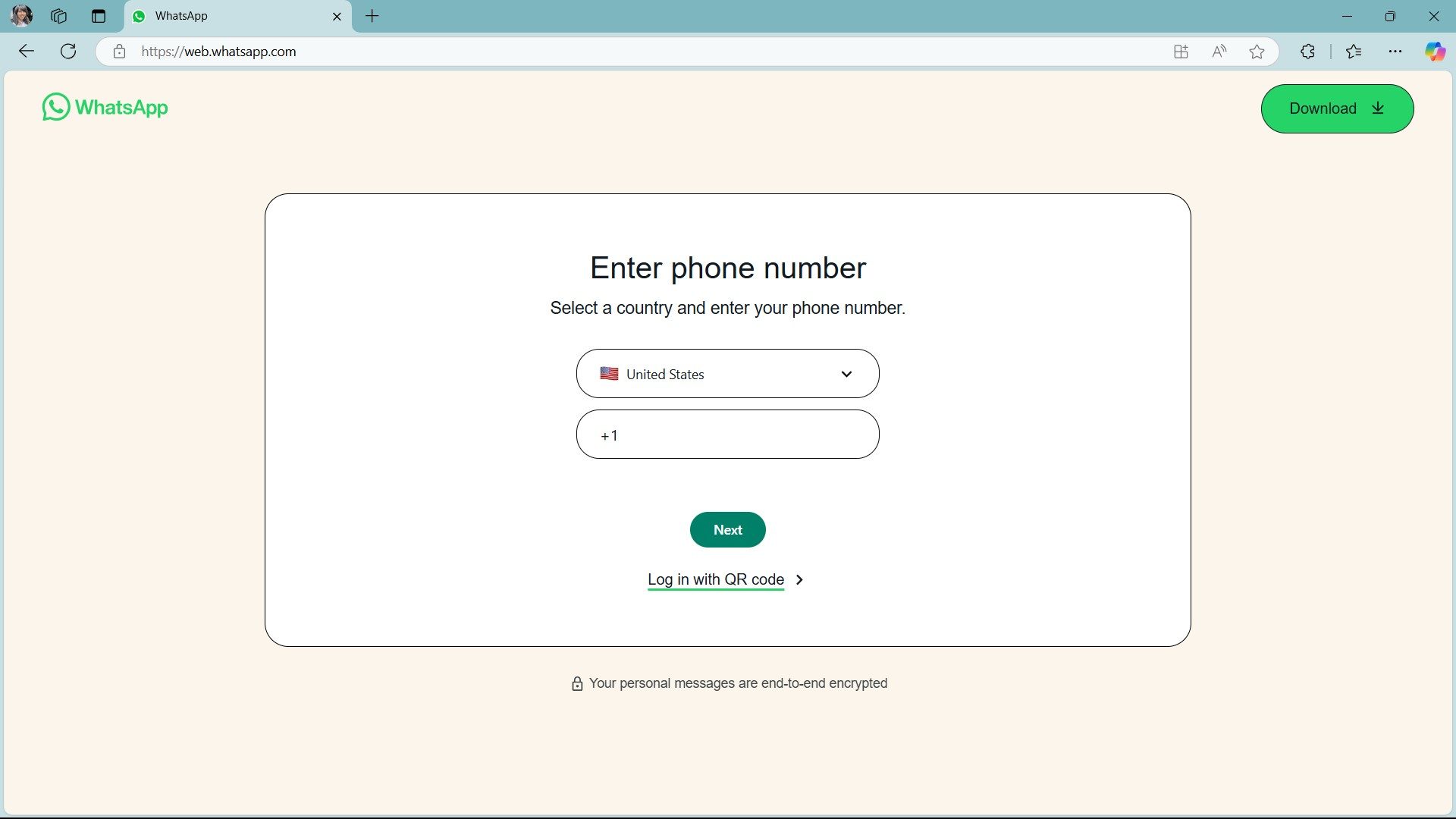
Step 3: You will be given an eight-digit code that you can enter into WhatsApp on your phone.
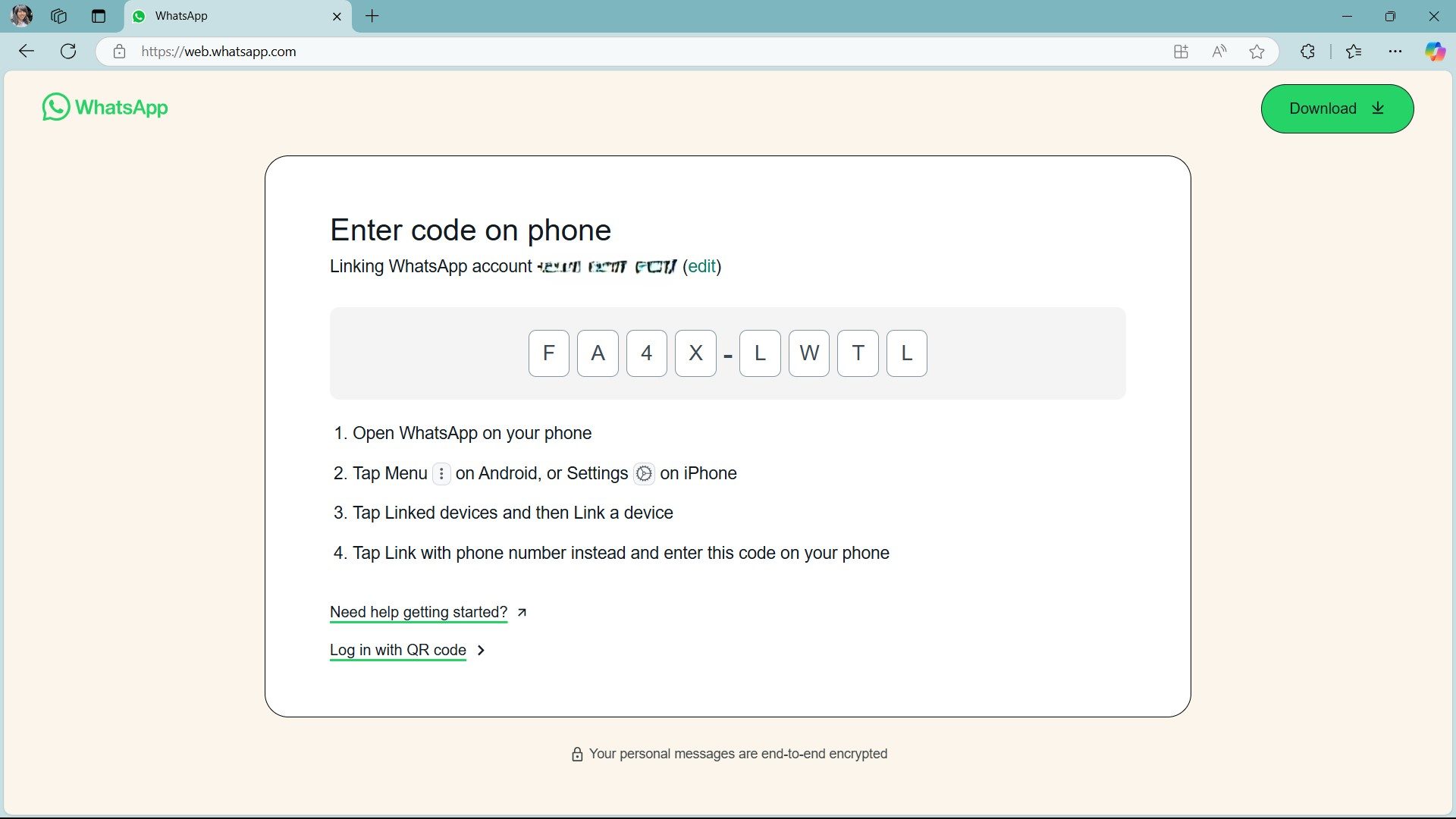
Step 4: Launch WhatsApp on your phone, and select Settings > Connected devices on the iPhone or in the three-dot menu again Connected devices on an Android phone.

Step 5: Select Connect the device.
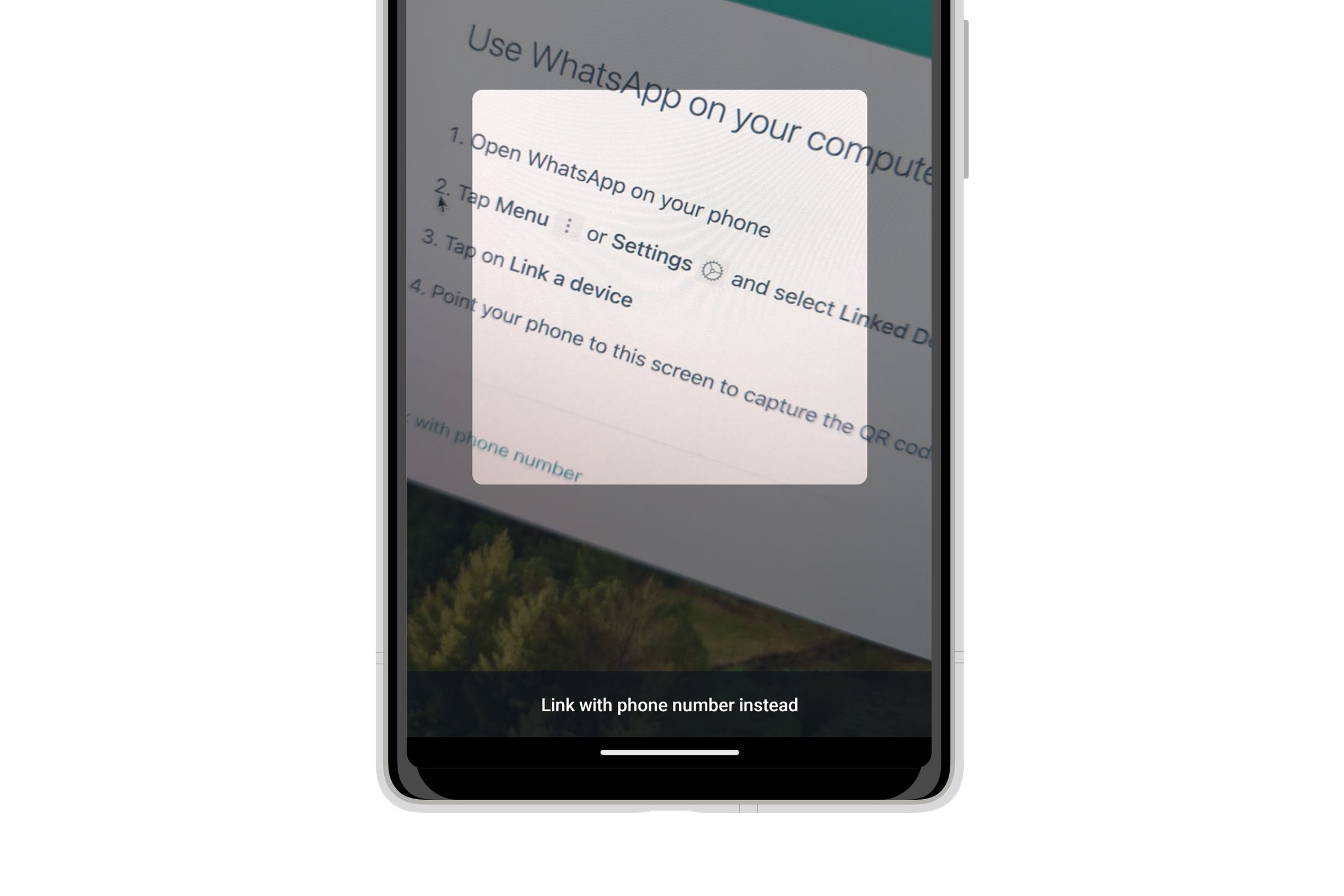
Step 6: On the QR code scanning screen, tap Connect with a phone number instead then enter the eight-digit code from WhatsApp Web when prompted.

Step 7: The WhatsApp page in your browser should refresh immediately and log you into your WhatsApp account.
How to use WhatsApp Web
Once you’re signed in, WhatsApp Web is just as easy as its mobile app counterpart. And for those who already use it on their phones, the interface will feel very familiar.
Step 1: To send a message from your desktop, click on an existing conversation or click on New discussion icon and select the contact you wish to communicate with. Here, you can see previous conversations if they have been saved, or use the message bar below.
Step 2: Click on Type a message bar and start chatting.
Step 3: When you are done with your message, press the button Come in key on your keyboard to send it, or just click on Submit icon.
Step 4: You can attach documents, photos, or recordings by simply pasting files from your desktop and sending them as you would any other message by clicking on the paper clip. Paste it icon under the current conversation.
How to password protect WhatsApp Web
After logging in to WhatsApp Web, the browser will remain logged in and associated with your account until you log out. But remember that signing out will require you to use your phone to sign in again.
Fortunately, you don’t need to sign out to keep your private messages away from prying eyes. You can enable the App Lock feature on WhatsApp Web which will keep your browser logged in and connected to your account while you need a password to unlock it.
Step 1: In WhatsApp Web, select Settings with the gear icon above your profile picture in the lower left corner.

Step 2: In the Settings menu, select Privacythen scroll down and select Application key.
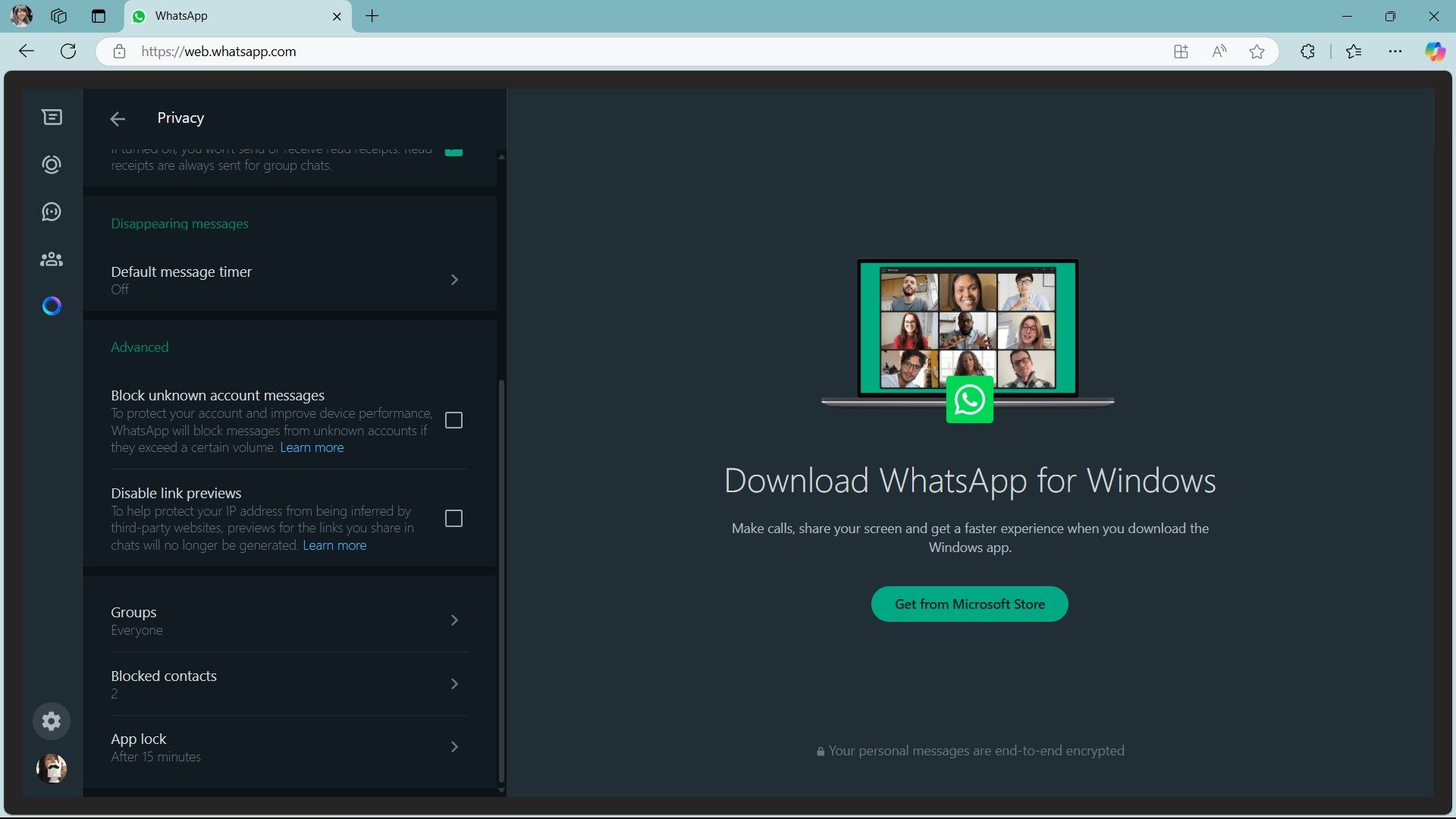
Step 3: Select the check box next to it Application key to enable the feature.
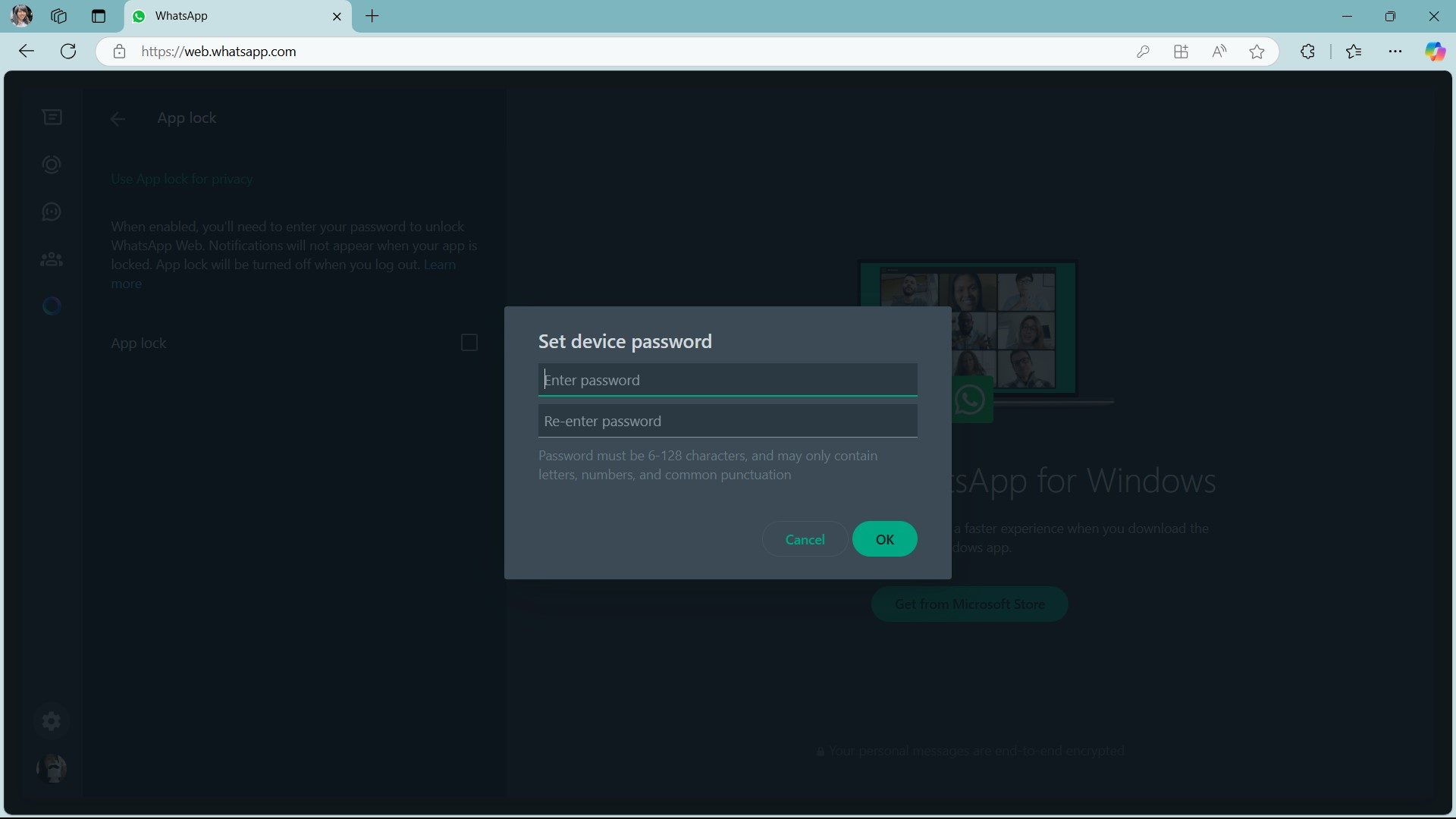
Step 4: When prompted, enter and confirm the password you want to use to protect WhatsApp Web, then select OK.

Step 5: Choose how long WhatsApp should wait before automatically locking the screen after inactivity. Once App Lock enabled, you can also lock the app at any time by choice Lock the app from the main three-dot menu. This replaces the Get out shortcut there, or you can still log out of Settings menu if needed.
It’s worth noting that the app lock password only works for the current WhatsApp Web session in the browser you’re using. It’s not shared with your other devices, and you’ll need to set it up again when you sign out and sign in later.
WhatsApp Web Features
After scanning the QR code, you can view your WhatsApp chat list directly on the web page. On the left, you’ll see your conversations, and you can click on any contact to open a conversation and view your message history, if you’ve saved it.
At the top left of the page, three icons are available: The situation, New discussionagain The menuwhich opens a list of additional options. I The situation option reveals updates posted by contacts, and the ability to reply in the window below. Clicking New discussion opens your contact list on the left side of the page, where you can start a conversation or create a new group.
A three-dot drop-down menu lets you create a new group, update your profile information, search archived chats, view starred messages, change settings like notifications and chat wallpaper, or log out.