Live wallpapers for Windows 11 and Windows 10 desktops at Lively Wallpaper
How to set a live wallpaper for Windows 11 or Windows 10 desktops is a popular question among users, but it’s not possible to do so using system tools. Free programs for this purpose aren’t numerous, but they do exist.
Lively Wallpaper is a relatively simple, completely free, open-source program in Russian that lets you set live wallpapers on your Windows 11/10 desktop. It’s arguably one of the best free options for this purpose, and it’s the subject of this review. Below you’ll also find a video demonstrating the program’s functionality.
Download Lively Wallpaper
You can download the free Lively Wallpaper program either from the official Microsoft Store or from the developer’s website. The latest version is available here (starting with version 1.0, Windows 10 version 1903 or later, or Windows 11 is required): https://www.rocksdanister.com/lively/
Installing live wallpapers shouldn’t cause any problems—no additional software is required, and there are no complexities.
After the first launch of the program, a setup wizard will launch, which in the current version only offers two options: whether to launch Lively Wallpaper with Windows (whether to add the program to startup) and choosing a taskbar theme (for example, you can make the taskbar transparent). The latter option can be changed later in the program settings in the “System” section.
Available live wallpapers, settings, and program features
After this, the main program window will open with a set of ready-made live wallpapers for Windows 11 and 10.
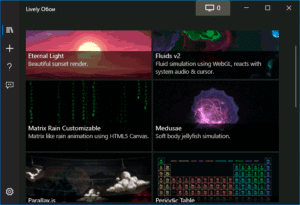
Among them are:
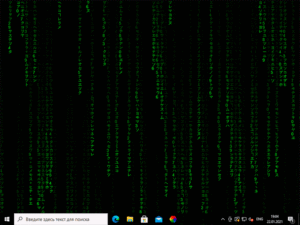
- Screen from The Matrix
- Mendeleev’s Periodic Table of Elements
- Various graphic effects
- Wallpaper with a parallax effect when moving the mouse pointer
- Sunrises and sunsets, the sea surface at sunset.
But the possibilities of setting live wallpapers are not limited to the pre-installed set; you can add your own wallpapers:
- Click on the Plus button in the left panel.
- Specify a video or animated GIF file, a YouTube link, an HTML5 page with the desired graphic effect, a ZIP archive with live wallpaper for Lively Wallpaper, or a shader from shadertoy.com
- After selecting the desired live wallpaper (they may not be applied immediately, but after some time), some of them can be configured by clicking on the settings button (the button with an image of the screen and a number) in the program title.
- Settings may vary for different wallpapers: for example, you can turn sound on or off for videos, and in some cases, you can change colors and other settings. These are usually easy to figure out. If you have multiple monitors, you can choose which screens the selected wallpaper will be applied to.
- The latest version of the program now features a “Wallpaper Recording” option. To do this, right-click a wallpaper in the list whose animation is based on user interactions (for example, Fluids) and select “Wallpaper Preview.” Click the record button in the title bar to record a video of your interaction with the live wallpaper. This video can then be set as your recorded wallpaper.
- I recommend going to the program settings (the gear button in the lower left corner) and exploring the available options. For example, in the “Performance” tab, you’ll find settings for how the program behaves in various situations: for example, disabling live wallpapers when the laptop is running on battery power, disabling full-screen applications like games when using a remote desktop, and other options that may be useful for your specific use case.
- The Wallpapers tab can also be useful if you can’t get live wallpapers to work perfectly with the default settings. Here you can enable or disable hardware acceleration for wallpapers, select a player for live wallpapers made from videos and animated GIFs, set the resolution for streaming internet video, and change the web browser engine used to render HTML5 wallpapers.
Additional information
Another interesting feature of Lively Wallpaper for users who can understand the code or at least replace resources is the ability to export existing wallpapers. To do this, right-click on the live wallpaper in the directory, select “Export Lively.zip,” and save the file to a convenient location.
Then, all that’s left to do is open the archive and edit it to your liking. For example, replacing resources (images in the assets folder) in parallax.js wallpapers is relatively easy for almost anyone. After editing, I recommend changing the description in the package.json file (to prevent duplicate wallpapers from appearing in Lively Wallpaper). Once finished, pack the modified files into a ZIP archive and import them into the program using steps 1-2 from the instructions above.
Lively Wallpaper runs surprisingly smoothly (at least in my test), is fast (it uses hardware acceleration), and when you launch any full-screen application (like a game), Lively Wallpaper stops completely to avoid using up your computer’s resources.