Monitoring File Changes in a Folder Using PowerShell
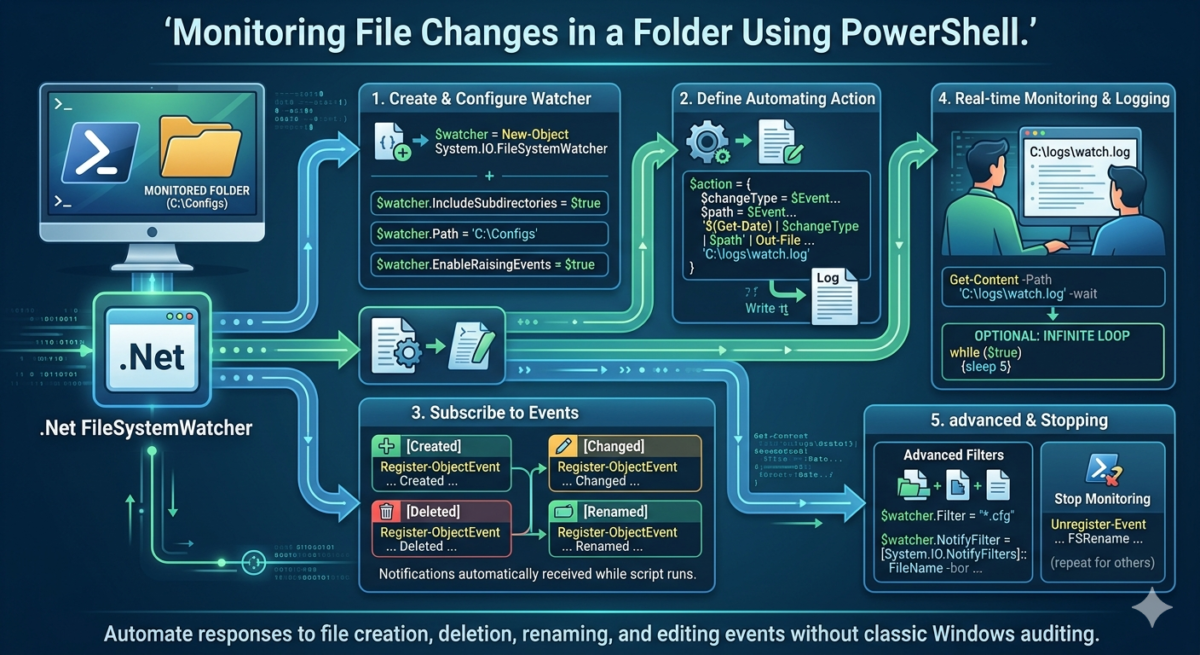
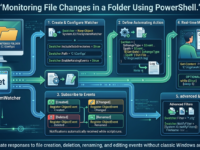
In scenarios where you need to monitor changes in a specific folder and perform an automated action when changes are detected in a file/directory (sending a notification, logging an event to a text file or event log, running a processing script, etc.), instead of using the classic Windows folder access event auditing, you can use the built-in .Net FileSystemWatcher class. This class allows you to monitor file (and folder) creation, deletion, renaming, and editing events in real time. In this article, we’ll look at how to monitor file system object changes in a specific directory using FileSystemWatcher from PowerShell.
Let’s create an object of the FileSystemWatcher class:
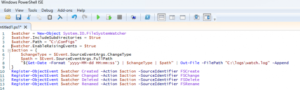
$watcher = New-Object System.IO.FileSystemWatcher
Do you want to monitor events in nested directories:
$watcher.IncludeSubdirectories = $true
Specify the target directory you will monitor:
$watcher.Path = "C:\Configs"
Enable event generation when changes are detected:
$watcher.EnableRaisingEvents = $true
We configure the action to be performed if changes are detected in the monitored directory.
$action = {
$changeType = $Event.SourceEventArgs.ChangeType
$path = $Event.SourceEventArgs.FullPath
"$(Get-Date -Format 'yyyy-MM-dd HH:mm:ss') | $changeType | $path" | Out-File -FilePath "C:\logs\watch.log" -Append
}
Now all that’s left is to subscribe to the specific event types you want to track. There are four event types available: Created , Changed , Deleted , and Renamed . I want to track all of these event types, so I’ll register all four subscriptions:
Register-ObjectEvent $watcher Created -Action $action -SourceIdentifier FSCreate
Register-ObjectEvent $watcher Changed -Action $action -SourceIdentifier FSChange
Register-ObjectEvent $watcher Deleted -Action $action -SourceIdentifier FSDelete
Register-ObjectEvent $watcher Renamed -Action $action -SourceIdentifier FSRename
Monitoring for directory changes will continue as long as the parent PowerShell.exe process is alive. The Windows kernel automatically monitors file system changes and sends notifications to your subscriptions. The script runs once, so there’s no need to add polling loops. However, when running the code via a PS1 script, you can add an infinite loop to the end:
while ($true) {sleep 5}
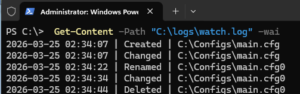
If you run this script, any changes to the monitored folder will be recorded in the specified log file. In a separate PowerShell console, I configured the log file contents to be displayed on the screen with real-time updates :
Get-Content -Path "C:\logs\watch.log" -wait
To stop monitoring, run:
Unregister-Event -SourceIdentifier FSCreate
Unregister-Event -SourceIdentifier FSChange
Unregister-Event -SourceIdentifier FSDelete
Unregister-Event -SourceIdentifier FSRename
If you only want to track changes in certain file types, you can define a filter at the beginning of the script:
$filter = "*.cfg"
$watcher.Filter = $filter
To make FileSystemWatcher respond only to specific events, you can use NotifyFilter. For example, I want to respond only if NTFS permissions, file size, or file name are changed:
$watcher.NotifyFilter = [System.IO.NotifyFilters]::FileName -bor [System.IO.NotifyFilters]::Size -bor [System.IO.NotifyFilters]::Security
If you need to create a separate handler (action) for a specific event, you can specify it immediately during the subscription using the Action parameter. In this example, when a file is renamed, I want to log both the old and new file names.
Register-ObjectEvent $watcher Renamed -SourceIdentifier FSRename -Action {
$details = $Event.SourceEventArgs
$timeStamp = Get-Date -Format 'yyyy-MM-dd HH:mm:ss'
$logMessage = "$timeStamp | Renamed | From: $($details.OldFullPath) To: $($details.FullPath)"
$logMessage | Out-File -FilePath "C:\logs\watch.log" -Append
}
For a large number of events (tens/hundreds per second), to avoid losing events, you can increase the size of the internal buffer to 64 KB:
$watcher.InternalBufferSize = 65536
Or run each action through a separate background process by adding a call to the handler code in the Action Start-Job
So, we looked at how to use PowerShell to implement a simple system for tracking changes, creation, deletion, and renaming of files in a specified folder and automatically respond to events.