R-Photo — free photo and video recovery
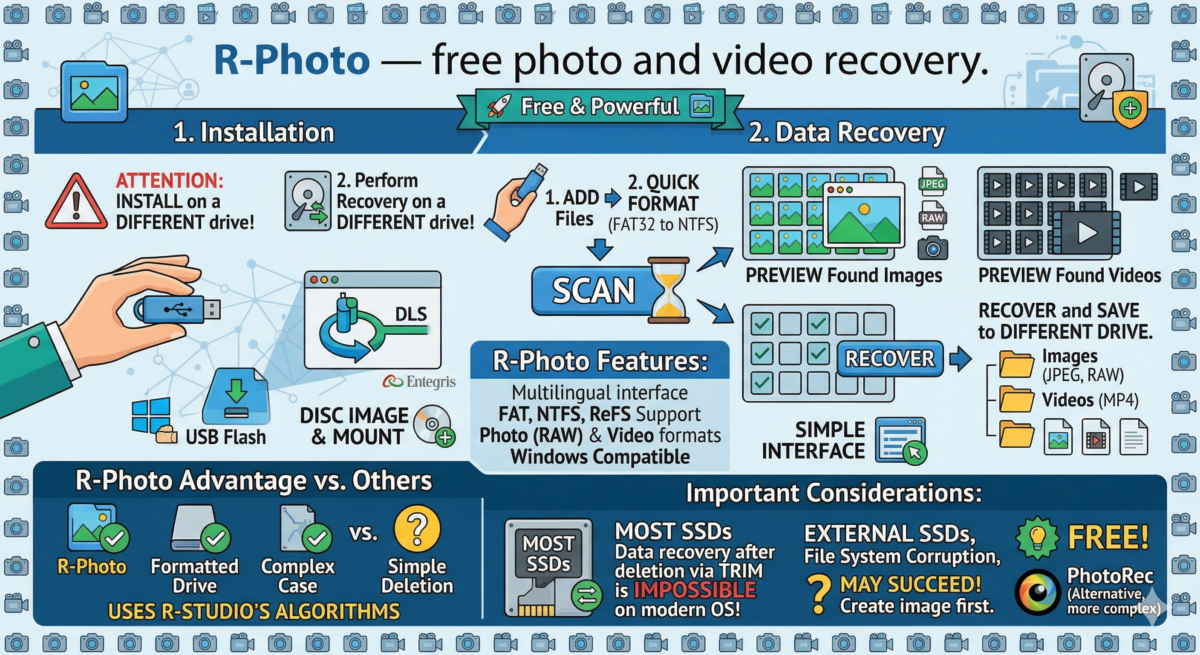
Table of Contents
There aren’t many high-quality and free data recovery programs. The ones you hear about can often only recover files after simple deletion, but in more complex cases, such as after formatting to a different file system, they “recognize” nothing on the drive.
R-Photo is a free tool from the same developer that produces the paid professional product R-Studio. It uses the same effective algorithms, but its main limitation is its specialization: it can only recover photos, other images, and videos. This program will be discussed further.
Installing and using R-Photo
You can download R-Photo from the developer’s official website. Installation shouldn’t cause any problems, but I recommend carefully reading the warning displayed during installation. It’s very important:
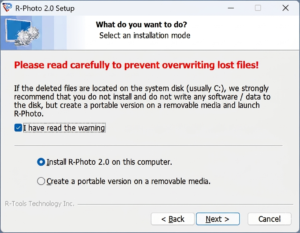
The gist of it is that you shouldn’t install the program on the same drive (meaning the physical drive, not the partition on it) from which you’re performing the recovery. I’d also like to point out that the recovery itself shouldn’t be performed on the same drive from which you’re performing the recovery.
For the example below, I used a USB flash drive. First, I formatted it in FAT32, then added image files and one video to the drive, and then formatted it (quick formatted) to the NTFS file system. The same applies to memory cards or hard drives. The situation is more complicated for SSDs, as discussed at the end of the article.
The case is not too complicated, but it is common (accidentally formatted memory cards from a phone or camera, flash drive), and many popular advertised programs cannot handle it.
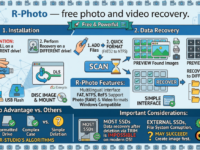
Below is an example of the process of recovering image and video files from a test drive in R-Photo:
After launching the utility, you’ll see a list of connected drives, along with the option to create a disk image and mount it. This can be useful for working with a virtual disk image on a “healthy” drive, rather than working with the drive itself (which risks causing further damage). This step will be skipped in this example, but for truly important data, I recommend using this approach.
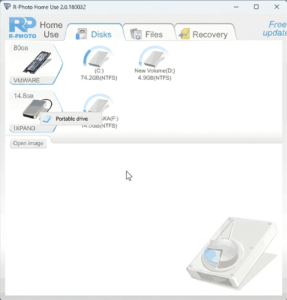
If you move your mouse pointer over the partition on the drive from which you want to recover data, you will see the “Show files” option; click on it.
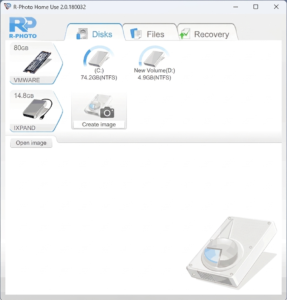
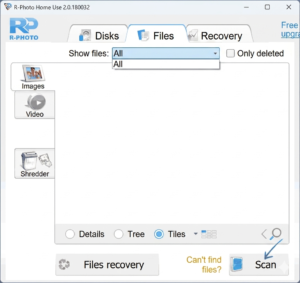
Click the “Scan” button in the next window and wait for the scan to complete. It may take a while, depending on the speed and size of your drive.
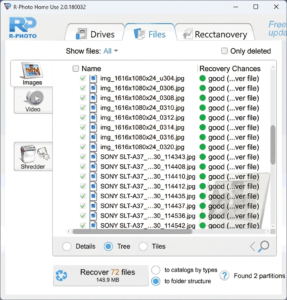
As a result, and if successful, you will see the images found on the drive (you can click on them to see a larger version of the image):
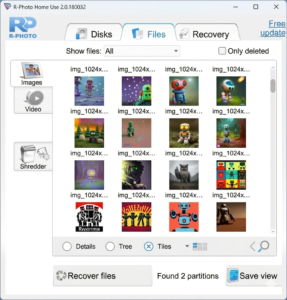
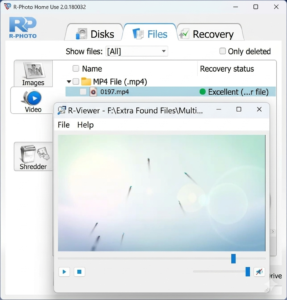
Similarly, a preview of found video files is available on the Video tab:
Select the files you would like to recover from the found files (this is easier to do in the Tree or Details view mode), click the Recover button, and specify a folder to save the recovered images and videos (Attention: do not restore to the same drive from which you are recovering).
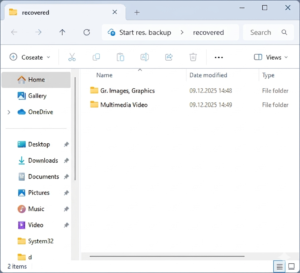
Wait for the process to complete. Using default settings, the files will be saved to the folder you specified, sorted by file type and extension, in subfolders:
In my test, I successfully recovered all the files that were placed on the flash drive before the test, as well as photos from an old camera that had been on it (and deleted) long before the experiment. The result is excellent for free software.
Please note that for most internal NVMe or SATA SSDs in modern operating systems, data recovery after deletion using “standard user” tools is impossible. This is due to the TRIM command, which physically erases memory cells (this does not happen on regular drives and flash drives).
In the case of file system corruption, partition deletion, or external SSDs, the situation may be different, and there is a chance of success. However, I strongly recommend first creating an image of the drive and working with it. Ideally, do all this not in a full-fledged OS with TRIM support, but in WinPE.
To summarize, R-Photo is an excellent and effective option for both beginners and non-novice users who only need to recover image and video files:
- Multilingual interface language is available.
- All current types of storage devices are supported,
- File systems: FAT12, FAT16, FAT32, exFAT, NTFS, ReFS, most photo formats (including RAW), and video.
- The program works on modern and outdated versions of Windows OS.
A similarly effective, but more complex option for the average user is PhotoRec (which recovers more than just photos and videos). I also recommend it if you don’t mind a slightly different approach to the recovery process.