The best malware removal tools
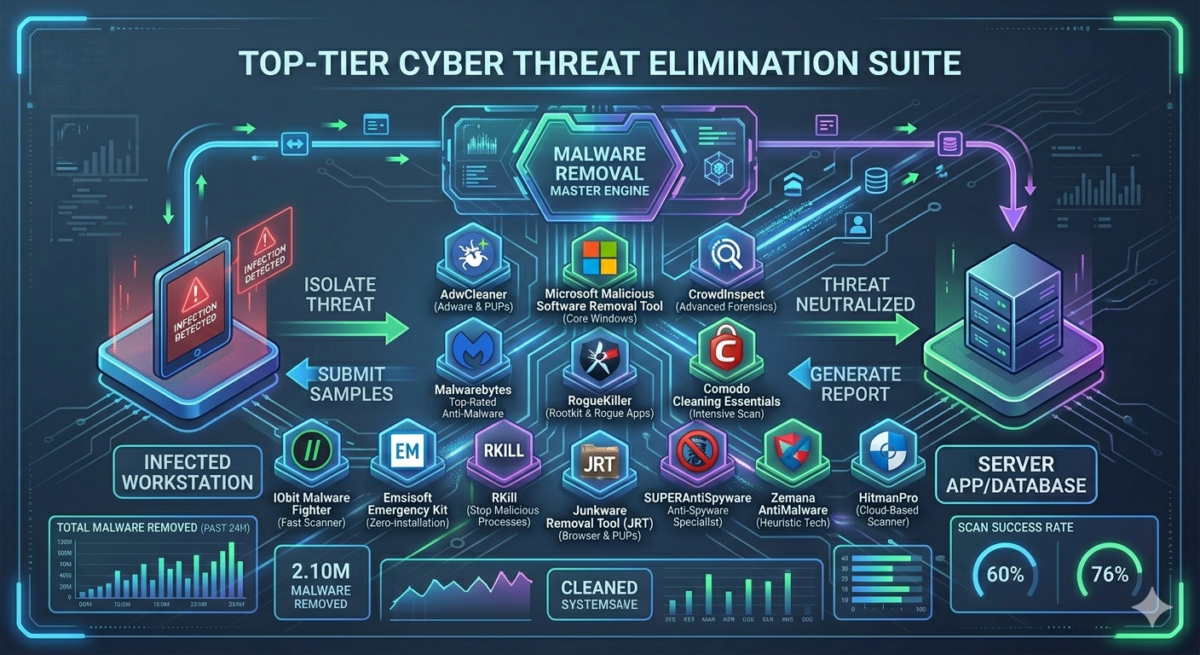
The biggest problem with unwanted programs is that antivirus software often doesn’t report them. Another problem is that standard removal methods may not work, and finding them is difficult. The issue of malware has previously been addressed in instructions on how to get rid of ads in browsers. This review includes a collection of the best free utilities for removing unwanted programs (PUPs, PUAs) and malware, cleaning browsers of adware, and related tasks. You might also find this helpful: Best Free Antiviruses.
AdwCleaner
I recommend starting your system scan and cleaning from malware with AdwCleaner. This is especially true for the most common issues today, such as pop-up ads and the automatic opening of unwanted pages, with the inability to change the browser’s start page.
The main reasons I recommend starting with AdwCleaner are that this tool for removing malware from your computer or laptop is completely free, is quite effective, requires no installation, and is regularly updated (plus, after scanning and cleaning, it advises on how to avoid future computer infections: very practical advice that I often give myself).
Using AdwCleaner is easy: launch the program, click “Scan,” review the results (you can uncheck any items you don’t want removed), and click “Clean.” You can also enable cleaning of network settings, the hosts file, and other items in the settings section.
The removal process may require a computer restart (to remove any software currently running before it launches). Once the cleanup is complete, you’ll receive a full text report detailing what was removed.
Note: AdwCleaner is currently being used as a disguise by some programs it’s designed to combat, so be careful. And if you download the utility from a third-party website, be sure to check it on VirusTotal.
Microsoft Malicious Software Removal Tool
If you have Windows 10 installed on your computer, the system already has a built-in malware removal tool (Microsoft Malicious Software Removal Tool), which works both automatically and can be launched manually.
You can find this utility in C:\Windows\System32\MRT.exe. It’s worth noting that this tool isn’t as effective as third-party malware and adware removal programs (for example, AdwCleaner, discussed below, works better), but it’s worth a try.
The entire malware search and removal process is performed in a simple wizard (where you just click “Next”), and the scan itself takes quite a while, so be prepared.
CrowdInspect – a tool for checking running Windows processes
Most of the malware detection and removal utilities presented in this review search for executable files on your computer, examine Windows startup, the registry, and sometimes browser extensions, and display a list of potentially dangerous software (checked against their database) with a summary of the specific threat detected.
In contrast, the Windows process checker CrowdInspect analyzes currently running Windows 11,10, 8, and Windows 7 processes, checking them against online databases of unwanted programs, running a scan with the VirusTotal service, and displaying the network connections established by these processes (also displaying the reputation of the sites to which the corresponding IP addresses belong).
If it’s not clear from the description how the free program CrowdInspect can help in the fight against malware, I recommend reading a separate detailed review:
Malwarebytes Anti-Malware Free
Malwarebytes (formerly Malwarebytes Anti-Malware) is one of the most popular programs for finding and removing unwanted software from your computer, and it also functions as an antivirus. For more information about the program and its settings, as well as where to download it, read the review ” Using Malwarebytes Anti-Malware.
Most reviews note the high malware detection rate and effective removal, even in the free version. After scanning, detected threats are quarantined by default and can then be removed by going to the appropriate section of the program. You can optionally exclude threats and not quarantine or delete them.
The program initially installs as a paid Premium version with additional features (such as real-time scanning), but after 14 days, it switches to free mode, which continues to work perfectly for manual threat scanning. The Malwarebytes Anti-Malware Free version for home use can be downloaded free from the official website: https://ru.malwarebytes.com/mwb-download/.
RogueKiller
RogueKiller is one of the anti-malware tools that hasn’t yet been acquired by Malwarebytes (unlike AdwCleaner and JRT). Its threat detection and analysis results (available in both a free, fully functional version and a paid version) are superior to its competitors, subjectively for the better.
RogueKiller allows you to scan your operating system and find malicious elements in:
- Running processes
- Windows Services
- Task Scheduler
- Hosts file, browsers, and downloader
In my test comparing RogueKiller with AdwCleaner on a single system with several potentially unwanted programs, RogueKiller was more effective. If your previous attempts at malware removal have been unsuccessful, I recommend trying:
Comodo Cleaning Essentials
Comodo Cleaning Essentials is not just a virus and malware scanner, but also a set of additional tools that allow you to:
- Check startup items in Windows 10, 8.1, and Windows 7.
- Clean your browser hijacked by unwanted software.
- Perform a check of running processes, finding any suspicious ones among them.
- Fix the blocking of Windows system utilities.
IObit Malware Fighter
Many users are familiar with products from the developer IObit, which also has its own software for detecting malicious and potentially unwanted programs – IObit Malware Fighter.
A very simple utility for beginners, it generally works, but it has its drawbacks.
Emsisoft Emergency Kit
Emsisoft Emergency Kit is a simple, free tool for detecting, removing, or quarantining malware and potentially unwanted programs, as well as rootkits and memory processes. It’s available worldwide and comes in both free and paid versions.
Users are unlikely to encounter any issues using the utility: simply run a scan, review the list of detected threats, and either remove them or attempt to quarantine them.
RKill
Sometimes, running malware, as well as the changes it makes to the system, interfere with the launch of the malware removal utilities listed here, as well as access to the Registry Editor, Task Manager, and other Windows tools. To eliminate these interferences, you can use the RKill utility.
For more information on what RKill does and how to use it, see the instructions for the Free RKill Malware Removal Utility.
Junkware Removal Tool
The free adware and malware removal program Junkware Removal Tool (JRT) is another effective tool for combating unwanted programs, browser extensions, and other threats. Like AdwCleaner, it was acquired by Malwarebytes after gaining popularity.
This text-based utility scans for and automatically removes threats in running processes, startup files, folders, services, browsers, and shortcuts (after creating a system restore point). Finally, it creates a text report of all removed unwanted software. Unfortunately, support for this product was discontinued after it was acquired by Malwarebytes. For a detailed review and download, see: Removing Unwanted Programs with Junkware Removal Tool.
SuperAntiSpyware
Another independent malware removal tool is SuperAntiSpyware, available both for free (including a portable version) and as a paid version (with real-time protection). Despite its name, the program detects and neutralizes not only spyware but also other types of threats, including potentially unwanted programs, adware, worms, rootkits, keyloggers, browser hijackers, and the like.
Although the program itself has not been updated for quite some time, the threat databases continue to be updated regularly, and, when tested, SuperAntiSpyware shows excellent results, detecting some elements that other popular programs of this type “don’t see”.
Utilities for checking shortcuts of browsers and other programs
When combating adware in browsers and elsewhere, pay special attention to browser shortcuts: often, while they appear the same, they launch a different browser or launch it in a different way than the default. As a result, you may see advertising pages, or, for example, a malicious browser extension may constantly reappear.
You can check browser shortcuts manually using Windows tools, or you can use automated analysis tools like the free Shortcut Scanner or Check Browser LNK. For more information about these shortcut checking programs and how to do it manually.
Google Chrome Cleanup Tool
One of the most common causes of unwanted ads in browsers (in pop-ups, or when clicked anywhere on any website) is malicious browser extensions and add-ons. However, based on experience responding to comments on articles about how to get rid of such ads, users, aware of this, often fail to follow the obvious recommendation: disabling all extensions without exception, because some of them seem legitimate and have been used for a long time (though in fact, it often turns out that these extensions have become malicious—this is entirely possible; sometimes, ads are even caused by extensions that previously blocked them).
The Google Chrome browser has a built-in Chrome Cleanup Tool (an official Google program, formerly known as the Google Software Removal Tool). Previously available as a separate utility on Google’s website, it is now part of the Google Chrome browser.
Zemana AntiMalware
Zemana AntiMalware is another good antimalware program, highlighted by the comments on this article. Its advantages include effective cloud search (it finds things that AdwCleaner and Malwarebytes Anti-Malware sometimes miss), scanning of individual files, and a generally user-friendly interface. The program also provides real-time computer protection (a similar feature is available in the paid version of MBAM).
One of the most interesting features is the ability to check and remove malicious and suspicious browser extensions. Considering that such extensions are the most common cause of pop-up ads and other unwanted ads, I find this feature absolutely fantastic. To enable browser extension checking, go to “Settings” – “Advanced.”
Among the disadvantages are that it only works for 15 days for free (however, considering that such programs are mostly used in emergencies, this may be enough), and the need for an internet connection to work (at least for the initial scan of the computer for malware, adware, and other things).
Hit.manPro
HitmanPro is a long-standing malware removal utility with an excellent reputation. It stands out from other programs primarily for its speed and the number of threats it detects, including those removed but leaving traces in Windows. It doesn’t require installation.
HitmanPro is a paid program, but you can try all its features for free for 30 days—enough to remove all junk from your system. During the scan, the utility found all the malware I’d intentionally installed and successfully cleaned my computer of it.
Judging by the feedback I’ve received from readers in articles on my website about removing browser adware (one of the most common problems today) and restoring a normal start page, Hitman Pro is the utility that helps the largest number of users resolve issues with potentially unwanted and downright malicious software. When combined with the next product, it works almost flawlessly. You can download HitmanPro from the official
Spybot Search & Destroy
Spybot Search & Destroy is another effective way to remove unwanted software and protect yourself from future malware. The utility also offers a wide range of additional security features.
In addition to scanning for unwanted software, the utility helps protect your system by monitoring installed programs and changes to important system files and the Windows registry. If malware removal fails and causes system crashes, you can roll back the changes made by the utility. The latest version is available for free from the developer: https://www.safer-networking.org/download/
I hope the anti-malware tools presented here will help you solve the problems you’re experiencing. If you have any additional information to add to this review, I’d appreciate your comments.