What is Android and how does it work?
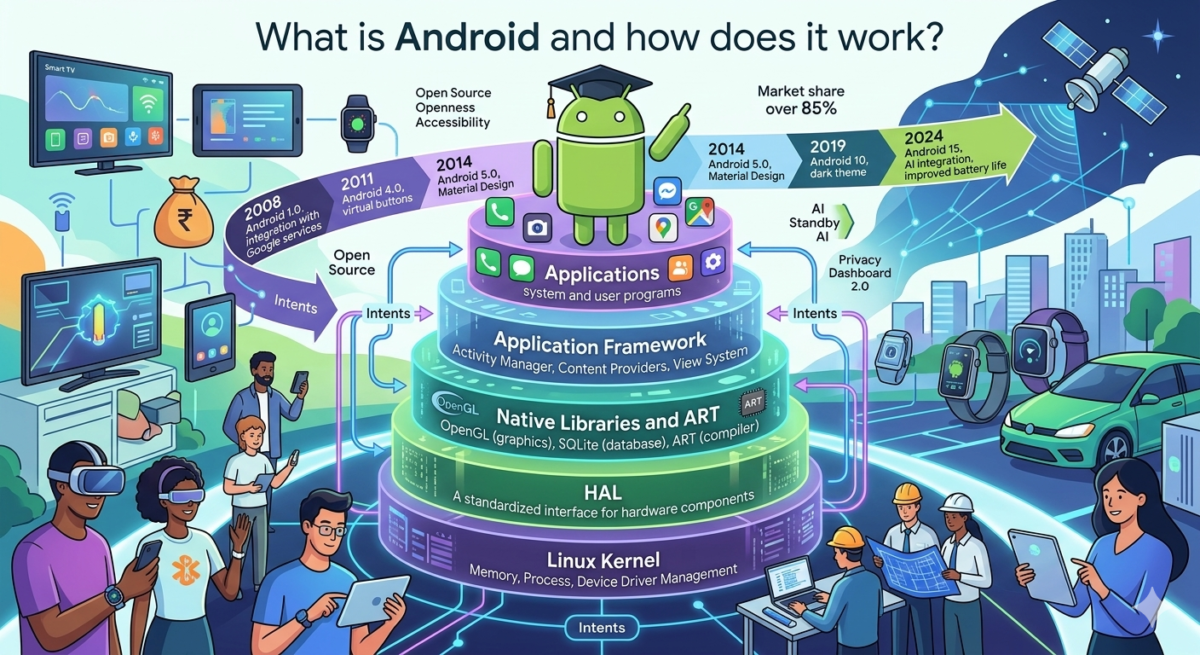
Table of Contents
Learn how Android works: architecture, components, and secrets to successful app development on the world’s most popular OS.
Today, 85% of mobile device users worldwide have an Android smartphone in their pocket. Dozens of manufacturers, thousands of phone models, from budget to premium – and they all run on the same operating system. But what is Android, really? Many of us spend hours every day using this operating system, but few understand how it works underneath the hood. Let’s explore how Android works, what its main advantages are, and why it will become the standard for mobile devices in 2025.
Android: an operating system for mobile devices
Android is a mobile operating system (OS) developed by Google specifically for touchscreen devices: smartphones, tablets, smartwatches, TVs, and even car systems. Essentially, Android is the “brain” of your device, controlling all its functions, from calls and messages to the camera and app launches.
A key feature of Android is its openness. Unlike iOS, which only runs on Apple devices, Android can be installed on devices from any manufacturer. This is why we see such a wide variety of Android smartphones from Samsung, Xiaomi, Google, OnePlus, Oppo, and dozens of other brands.
Dmitry Kovalenko, Technical Director of Mobile Application DevelopmentWhen the first commercial Android smartphone, the HTC Dream (G1), was released in 2008, few believed the platform would succeed. The market was divided between Symbian, BlackBerry, and iOS. But Android’s openness changed the game.
I remember one of our clients, a large retail chain, doubting the value of developing an Android app in 2010. “Why bother? All our customers have iPhones!” the marketing director said. We finally convinced him to launch an Android version. A year later, 70% of installs were on Android, and by 2015, that figure had grown to 85%. The platform’s openness and accessibility allowed it to conquer the mass market.
Today, in 2025, Android development is a standard without which it’s impossible to imagine a successful digital product. The platform’s versatility allows for the creation of apps for any audience, from budget to premium users.
The history of Android began in 2003, when Android Inc. was founded by Andy Rubin. Google acquired the company in 2005, and the first version of Android, 1.0, was released in 2008. Since then, the system has come a long way – from a simple phone OS to an ecosystem connecting billions of devices.
Interestingly, each version of Android was traditionally named after a dessert in alphabetical order: Cupcake, Donut, Eclair, and so on. Although Google abandoned this tradition after Android 9 Pie, many users still remember these “sweet” names with nostalgia.
| Android version | Year of release | Key Features |
| Android 1.0 | 2008 | First release, basic phone features, and integration with Google services |
| Android 4.0 (Ice Cream Sandwich) | 2011 | Unified Holo interface, virtual navigation buttons |
| Android 5.0 (Lollipop) | 2014 | Material Design, improved notification system |
| Android 10 | 2019 | Gesture navigation, dark theme, improved privacy |
| Android 15 | 2024 | AI integration, improved battery life, Instant Apps 2.0 |
In 2025, Android remains the most popular mobile OS in the world, with a market share of over 85%. More than 3 billion Android devices are actively used monthly, making it the largest ecosystem in the world.
How Android Works: Kernel, Libraries, and Applications
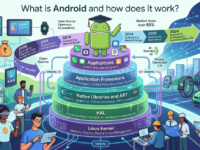
Android’s architecture resembles a multi-layered cake, with each layer performing its own functions and interacting with the others. Understanding this structure will help you understand how the system works internally.
At the lowest level is the Linux kernel, the foundation of the operating system. It is responsible for interacting with the device’s hardware (processor, memory, camera), managing processes, network connections, and security. Linux was chosen as the foundation for the operating system due to its reliability, flexibility, and open source nature.
Above the kernel is the hardware abstraction layer (HAL). This component provides a standard interface that allows Android’s upper layers to interact with various hardware components without worrying about their specific implementation. Thanks to the HAL, the same application can run on devices from different manufacturers.
The next level is the native libraries and the Android runtime. These libraries include various components written in C/C++ that provide the system’s core functionality, from graphics (OpenGL) to data processing (SQLite). The Android runtime (ART, formerly Dalvik) is responsible for launching applications, converting their code into instructions for the processor.
Above the libraries sits the application framework —a set of components used by developers to create applications. These are the “building blocks” of all Android applications: the activity manager, content providers, resource manager, and other services.
At the top level are system apps and user apps. System apps come with Android and provide basic functionality: phone, contacts, messages, calendar, etc. User apps are programs you install from Google Play or other sources.
- Linux Kernel: Memory, Process, and Device Driver Management
- HAL: A standardized interface for hardware components
- Native libraries: OpenGL (graphics), Media Framework (audio/video), SQLite (database)
- ART: Android runtime, compiles application code
- Application framework: Activity Manager, Content Providers, View System
- Applications: system and user programs
This multi-layered architecture ensures Android’s flexibility and security. Each app runs in its own sandbox, isolated from other apps and the system, increasing data security and resilience to failures.
The main components of Android and how they interact
Android apps consist of several key components that interact with each other to create a complete user experience. Understanding these components helps you understand how apps work on your device.
Activities are the visual screens of an application with which the user interacts. Each activity represents a separate interface screen. For example, in an email application, one activity might display a list of messages, another the message contents, and a third a form for creating a new message. Activities can launch each other and pass data between them.
Services are components that run in the background without a user interface. They perform time-consuming operations, such as playing music, downloading files, and synchronizing data. Thanks to services, apps can continue to run even when the user switches to other programs.
Content providers manage access to structured data. They provide a mechanism for exchanging information between applications. For example, contacts or calendars can be made available to different applications through their respective providers, while maintaining security.
Broadcast receivers respond to system notifications. They allow apps to receive information about system events, such as low battery, Wi-Fi connection, incoming message, and so on. Receivers can trigger specific actions in response to these events.
Mobile UX designerIn 2018, I worked on an app redesign for a major bank. The client was unhappy with the notification system – users were complaining they were missing important transaction notifications.
The problem turned out to be due to improper use of Android components. Developers were using Activities instead of Services to track transactions, and the system periodically killed these processes to save resources.
We redesigned the architecture, leveraging Services for transaction monitoring and Broadcast Receivers for notification processing. The results exceeded expectations: notification deliverability increased from 68% to 99%, and response times were halved.
This case clearly demonstrated the importance of understanding how Android components interact. Proper use of the system architecture is not just a technical issue, but a key factor in the user experience.
All these components are connected using a special mechanism called Intents. Intents are asynchronous messages that activate application components. They can be explicit (indicating a specific component) or implicit (describing an action to be performed). For example, when you click a link in a message, the system creates an intent to open a web page and offers a list of applications capable of handling this intent.
The lifecycle of Android components is strictly defined. For example, activities go through several states: creation, start, resume, pause, stop, and destruction. The system can manage these states independently, depending on user actions and available resources.
| Component | Main function | Example of use |
| Activity | Visual interface | Chat screen, settings screen |
| Service | Background operations | Music player, file download |
| Content Provider | Data management | Access to contacts, media files |
| Broadcast Receiver | Reaction to events | Low battery alert, SMS |
| Intent | Communication between components | Starting activity, transferring data |
In 2025, this architecture was expanded with Jetpack components, which simplify development and ensure compatibility with new versions of Android. The ViewModel, LiveData, and Room libraries have become the standard for building modern apps, while on-device AI components enable complex operations without sending data to the cloud.
Android Operating Principles: From Startup to Use
When you press the power button on your Android device, a complex process begins to load the operating system. Let’s follow this process step by step.
Android bootup begins with the bootloader, a small program built into the device by the manufacturer. The bootloader initializes the hardware components and launches the Linux kernel. At this point, you may see the manufacturer’s logo on the screen.
The Linux kernel then loads, launching the basic processes and drivers required for the device to function. The kernel creates and configures the file system, initializes the memory and processor, and loads drivers for various components (screen, camera, Wi-Fi, etc.).
After the kernel is initialized, Android system servicesinit begin to launch. This process reads configuration files and starts basic services. One of the key processes launches the ART virtual machine and becomes the “parent” for all subsequent applications.
Next, System Server loads —the main system process that initializes key Android services: window management, notifications, power, telephony, and many others. Security and permission management services are also activated at this stage.
Once the system services are ready, Android launches the home screen (launcher) —the first app the user sees. The launcher displays app icons and widgets and allows users to interact with the system. At this point, the boot is complete, and the device is ready for use.
- Press the power button → Activate the bootloader
- Bootloader → Initialize hardware and start the kernel
- Linux Kernel → Loading Drivers and Basic Services
- Init and Zygote → Launching ART and system processes
- System Server → Initializing Android Services
- Launcher → Show Home Screen
After the system boots, user interaction begins. When you launch an application, the following occurs:
1. Launch request: You click on the application icon, and the system creates an intent to launch it.
2. Permission Check: Android checks whether the app has the necessary permissions to run and access the required resources.
3. Resource Allocation: The system allocates memory and processor time to the application.
4. Create process : Zygote creates a new process for the application by copying the pre-loaded libraries.
5. Initialization: The application code is loaded, and the context and main objects are created.
6. Start Activity: The main activity of the application is started, which displays the user interface.
A key feature of Android is multitasking. The system can run multiple processes simultaneously, distributing resources among them. Android uses a sophisticated memory management algorithm that can suspend background apps or even close them if resources are low.
In 2025, Android will use advanced machine learning algorithms to optimize system performance. App Standby AI analyzes your usage patterns and predicts which apps you’ll need next, preloading their components for instant launch and saving battery power on rarely used apps.
Android Features for Beginners: Getting Started
If you’re just getting started with Android, you might be overwhelmed by the operating system’s wide range of capabilities. Let’s explore the key features that make Android a convenient and powerful tool for everyday tasks.
The home screen and launcher are the starting point for interacting with your device. Unlike iOS, Android offers a high degree of personalization: you can arrange app icons in any order, add widgets (mini-apps that run directly on the home screen), change the wallpaper, and even completely replace the launcher with an alternative from Google Play.
The notification shade is one of Android’s most useful features. Swipe down from the top of the screen to see all app notifications and quick settings (Wi-Fi, Bluetooth, brightness, etc.). Android 15 introduces intelligent notification prioritization using AI that learns from your habits.
Google Play is the official app store for Android, with over 3.5 million apps and games. Here you’ll find both free and paid apps. In 2025, Google Play added the AI App Advisor feature, which analyzes your interests and recommends apps that best suit your needs.
Google Assistant is a virtual assistant that can perform various tasks with just your voice: call contacts, send messages, set reminders, search the internet, control your smart home, and much more. You can activate it by saying “OK, Google” or by long-pressing the home button.
Here are some useful tips for beginner Android users:
- Customize your lock screen: Add a PIN, fingerprint, or face recognition to protect your data.
- Use widgets: Add a calendar, weather, or notes to your home screen for quick access to information.
- Set up a Google account: This provides data backup and access to Google services.
- Learn navigation gestures: they make using your device more intuitive and faster.
- Set notification priorities: Determine which apps can send notifications and how important they are.
One of Android’s main advantages is its deep system customization. You can install third-party launchers, keyboards, browsers, and even replace the default apps with alternative ones. This allows you to create a truly personalized environment tailored to your needs.
For more advanced users, Android offers additional features: split-screen for working with two apps simultaneously, picture-in-picture mode for watching videos while using other apps, and hidden developer settings for fine-tuning the system.
In 2025, Android 15 introduced Privacy Dashboard 2.0, which gives you complete control over what data your apps use and when. Now you can not only see your camera, microphone, and location access history but also configure automatic privacy rules for different apps and usage scenarios.
Android has evolved from a simple mobile operating system into a universal platform, connecting smartphones, tablets, watches, TVs, and even cars. Its openness and flexibility have made it a dominant force in the market, and constant innovation keeps the system relevant and appealing to users. Understanding how Android works not only helps you use your device more efficiently but also opens up new opportunities for personalizing and optimizing your digital experience. Start small – learn the basic features, gradually master the advanced settings, and your Android smartphone will become a truly smart assistant, customized to your needs.