WO Mic — Use your Android or iOS phone as a microphone for your computer
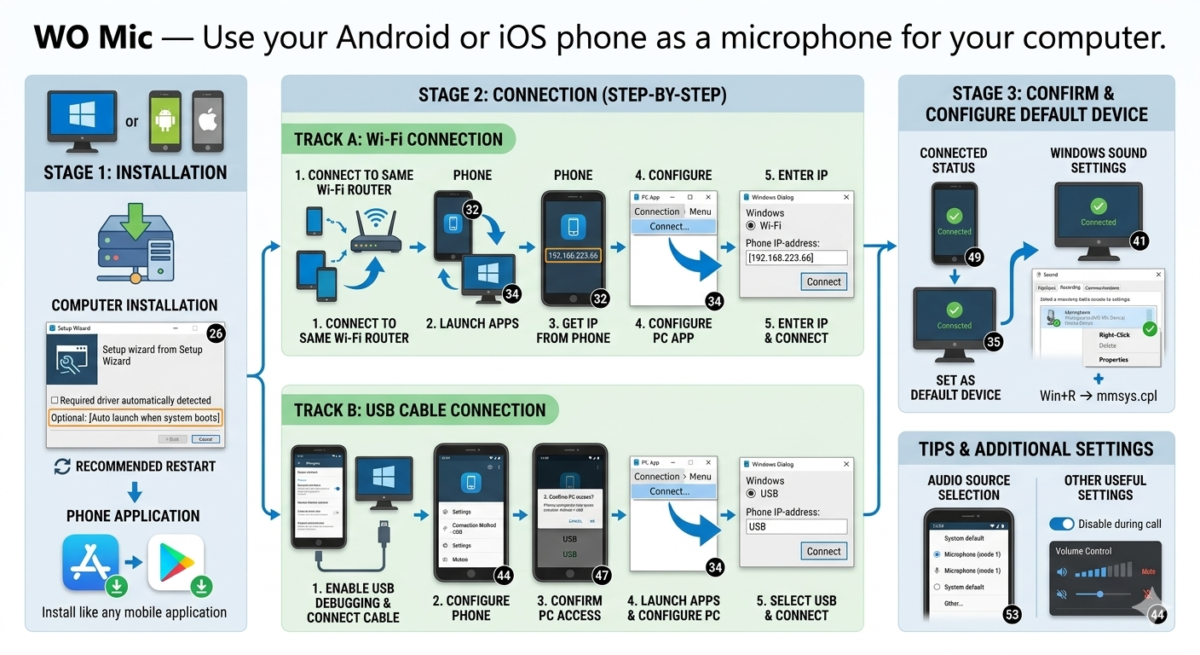
Table of Contents
If you need a microphone on your Windows computer but don’t have a built-in one and don’t want to buy one, you can use your phone as a microphone.
This article discusses the WO Mic app, which lets you configure a connected phone to act as a microphone via Wi-Fi, Bluetooth, or a cable.
Installing WO Mic
To start using your phone as a microphone, you will need to install the WO Mic application on both your PC and your phone. All download links, including applications in the Play Store and App Store, are available on the official website.
The installation process shouldn’t cause any problems, but I’d like to point out a few nuances:
- During the installation of the WO Mic Client on your computer, you will be prompted to configure the settings; the required driver will be detected automatically. Additionally, if you want to use this feature regularly, you can select the “Auto launch when system boots” option.
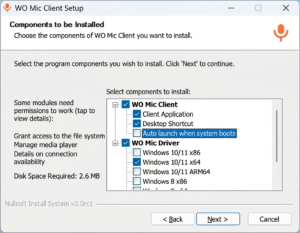
- After installing the program on Windows, you will be prompted to restart your computer; it is best to follow the recommendation.
- If you see a message about missing required DLL files when running WO Mic in Windows, install the required Visual C++ components from the official Microsoft website https://aka.ms/vs/16/release/vc_redist.x86.exe
The phone application is installed in the same way as any other mobile application.
Connecting a phone as a microphone
I tested two connection types (USB cable and Wi-Fi) and only on Android, but I assume the process will be similar for iPhone or other connection types.
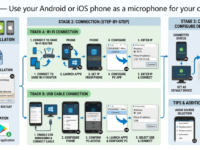
For example, to connect via Wi-Fi, you only need to follow these steps:
- Launch the WO Mic app on your phone and computer, making sure both devices are connected to the same router (the computer can also be connected via cable).
- In the app on your phone, you’ll see information about the IP address and port for the connection (Wi-Fi is usually selected by default, but if not, open the app menu and select the desired connection type). Tap the “Play” button in the app on your phone to launch it.
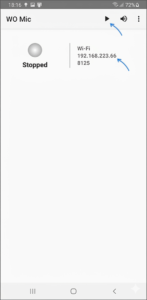
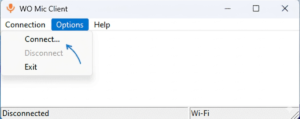
- In the application on your computer, open the “Connection” menu and select “Connect”.
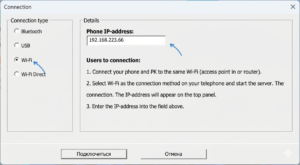
- Select the “Wi-Fi” connection type, enter the IP address displayed on your phone, and click “Connect”.
- If everything went well, you will see “Connected” in the application status on your computer and on your phone.
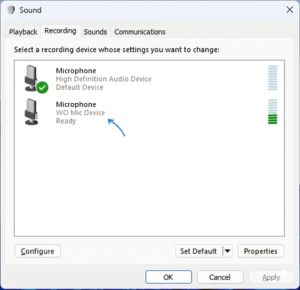
- A new microphone, WO Mic Device, will appear in the list of recording devices. Right-click it and set it as the default device (for voice recording) and, if desired, as the default communication device (required for use as a microphone in communication apps). You can open the list of recording devices by pressing Win+R — mmsys.cpl. If you prefer to configure the settings in Windows Settings, you’ll find the new microphone there as well.
Connection process using USB cable:
- Enable USB debugging on your Android phone, connect the phone to the computer, a nd allow access to data from the computer (a corresponding notification should appear on the phone).
- Launch the WO Mic app on your phone and computer.
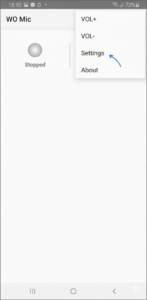
- In the app on your phone, open the menu, select “Settings,” click “Connection Method,” and select “USB.” Then, back to the main app window, click the “Play” button in the top bar.
- In the application on your computer, from the Connection menu, select Connect.
- Select the “USB” connection type and click “Connect.” Your phone may prompt you to allow access—confirm.
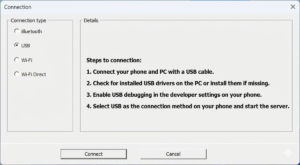
- As in the previous case, if the program status on both your PC and your phone shows “Connected”—everything is working—you can select your microphone as the default one in Windows.
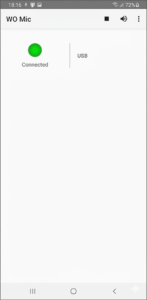
Ultimately, connecting to WO Mic is relatively simple, and everything works fine, at least in my testing. I also recommend checking the app settings on your phone, where you can select a specific microphone for your device or its operating mode under “Audio Source”:
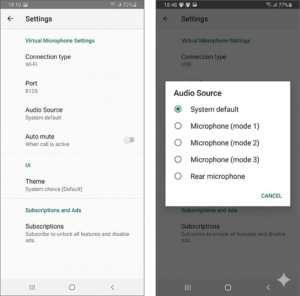
You can also change additional settings there, such as automatically disabling the microphone during a call. In the app’s main menu on your phone, you can increase or decrease the volume, and the speaker button mutes the microphone when needed.
I hope this information is useful to some of you. I’d appreciate a comment below about how everything worked for you and how satisfied you are with the app.