
We’ll show you how to set up your TP-Link router using the Tether app on your mobile phone or through your browser on your PC. Follow the steps and activate your Wi-Fi network.
To set up a TP-Link router, you first need to connect the modem and power cables. Then, you should use the Tether app on your mobile phone or the web panel (tplinkwifi.net) in your browser. In both methods, you will create a new network name (SSID) and a password for your Wi-Fi.
For those doing this for the first time, you may experience initial difficulties or have questions at times. To make this step more comfortable, we will teach you the two main installation methods: the mobile method, which is more intuitive, and the traditional computer method. In addition, we will cover essential security steps after installation and how to resolve common access problems. Check it out below!
Before we begin: connecting the router hardware
Before accessing any application or control panel, the physical connection of the cables needs to be correct. Without this, the router will not receive an internet signal. First, unplug your modem (the device from your internet provider) from the power outlet. Take the network cable (Ethernet) coming from your modem and connect it to the WAN port of your TP-Link router.
This port is separate from the others and, in most models, is highlighted in blue. Turn the modem back on and wait about two minutes for it to establish a connection with the provider. After it stabilizes, plug the router into the power outlet and wait for the lights on the front panel to turn on. If using a computer for a wired setup, connect a second network cable to one of the LAN ports (usually yellow or orange) and the other end to your PC.
Method 1: Setting up the TP-Link router via mobile phone (Tether app)
The TP-Link Tether app is the most straightforward way to set up your device. It visually guides you through the entire process. This tool is designed so that installation can be done in just a few minutes, using only your smartphone. Check out how to do this method below.
Downloading the app and creating a TP-Link ID
The first step is to download the “Tether” app from your phone’s app store (available for Android and iOS). When you open it, you will need to create a TP-Link ID or log in if you already have an account. This ID is used to manage your devices remotely, allowing you to change settings even when you’re not at home.
Next, connect to the router’s default Wi-Fi network. The network name (SSID) and password are on a sticker on the bottom of the device. Access your phone’s Wi-Fi settings, find the name in the list, and connect using the password provided on the sticker.
Following the Tether setup wizard
When you return to the Tether app, it will automatically detect the router you just connected to. Tap your device model in the list to begin. The first mandatory setup step will be to create an administrator password (or login password). The app will ask about your connection type. In most cases, the correct option is “Dynamic IP”. Proceed to the next step, where you will set the new name (SSID) and password for your Wi-Fi network.
If your router is “Dual Band,” the app may suggest “Smart Connect,” which uses the same name for both 2.4 GHz and 5 GHz networks, letting the router decide which is best for your device. After saving, your phone will be disconnected (because the default network no longer exists). Connect to the new network you just created to complete the process.
Method 2: Configuring the router via web browser (PC or mobile phone)
If you prefer not to use an app or are setting it up via a computer, the web browser method is the traditional way. You can use a PC connected to the router via a network cable (in the yellow/orange LAN ports) or any device (PC or mobile phone) connected to the standard Wi-Fi network (using the password from the label).
Accessing the web administration panel (tplinkwifi.net)
Open an internet browser (such as Chrome, Firefox, or Safari). In the address bar (not the search bar), type the address http://tplinkwifi.net. If this URL doesn’t work, try the default IP address, which is usually 192.168.0.1 or 192.168.1.1.
The first time you access the system, it will ask you to create an administrator password. This will protect access to your router’s control panel. Create a strong password and write it down. On older models, it may ask for a default username and password, which are usually “admin” for both fields .
The Quick Setup wizard
After creating your password and logging in, the administration panel will be displayed. Look for the “Quick Setup” option, which is usually the first screen shown or highlighted in the menu. This wizard will guide you through the essential steps. The wizard will ask you to select the “Operating Mode”. Keep it on “Router” unless you want to use it as an “Access Point” or “Repeater”.
Next, it will ask about your WAN (internet) connection type. For most residential providers, select “Dynamic IP”. If your provider requires a login and password (such as some fiber services that use PPPoE), select that option and enter the information provided by your provider.
Adjusting the Wi-Fi network name (SSID) and password
The final step of the wizard is the Wireless (Wi-Fi) configuration. Here you must define your network name (SSID). If your router is “Dual Band”, you will see options for the 2.4 GHz network and the 5 GHz network. You can use the same name and password for both, enabling “Smart Connect” (if available), so that your devices switch bands automatically. Another option is to create different names (e.g., “MyNetwork_2G” and “MyNetwork_5G”).
This allows you to manually choose: 2.4 GHz has a greater range, while 5 GHz offers more speed over short distances . Create a strong password (using the WPA2 or WPA3 standard) and click save. The router will restart, and your devices will need to connect to the newly created network.
What to do after the initial setup
Your Wi-Fi network is working, but the setup isn’t complete. There are maintenance and security steps that ensure your network functions properly and is protected against unauthorized access. Many users skip these steps, leaving their network vulnerable. Here’s how to do it.
Change the router’s administrator password.
If you didn’t change the administrator password during setup (or if you used the default “admin” on an older model), this is the most important step. This change prevents someone on your network from accessing the control panel and changing your settings, intercepting your traffic, or redirecting you to fake websites.
In the Tether app, this is located under “Tools” > “System” > “Login Password”. On the web dashboard, look for “System Tools” > “Password” or “Administration”. Remember: the administrator password must be different from your Wi-Fi password.
Check for and install firmware updates.
Firmware is the router’s internal operating system . Just like your cell phone or computer, it needs updates. Updates fix bugs, improve stability, and close security vulnerabilities that can be exploited by hackers.
In the Tether app, the application usually notifies you on the home screen if there is a new version. On the web panel, the option is located in “Advanced” > “System Tools” > “Firmware Upgrade”. You can use the online check or download the update file from the TP-Link website (specific to your model and hardware version) and send it manually.
Consider creating a guest Wi-Fi network.
When you have visitors, it’s not ideal to give them your main network password . Doing so will give your guests access to all other devices connected to your network (such as your computer, Smart TV, or network hard drives).
The “Guest Network” solves this. It creates a second Wi-Fi network, with its own name and password, that is completely isolated from your main network . Our visitors can use the internet, but they cannot access your files or devices. You can activate this feature in the “Guest Network” section of the app or web panel. In many models, it’s even possible to set operating hours or speed limits for this network.
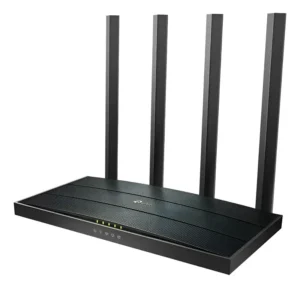
TP-Link Wireless AC1200 Router
Having trouble accessing it? Solutions to common problems.
Sometimes the setup process encounters a problem. The most common is that the browser cannot open the tplinkwifi.net login page or the IP address . Before resetting the device, there are a few checks that can be performed. See below.
What to do if the IP address or login website won’t open?
If you are using a cable, check that it is firmly plugged into the LAN port (yellow) and into the computer . If you are using Wi-Fi, confirm that you are connected to the correct TP-Link network (the one indicated on the label) and not to another network or your mobile data.
If tplinkwifi.net fails, try the default IP address: 192.168.0.1 or 192.168.1.1. Also, try clearing your browser cache or using a different browser. In some cases, the ISP’s modem uses the same IP address as the router, causing an “IP conflict”. If you suspect this, disconnect the WAN cable (blue), access the TP-Link control panel, and, in the “Network” > “LAN” section, change the router’s IP address to 192.168.2.1. Check out a review of the TP-Link 9 router.
How to reset a TP-Link router to factory settings.
If you’ve forgotten the administrator password you created or if the router isn’t responding, the ultimate solution is a factory reset. This will erase all the settings you’ve made, including the Wi-Fi name and password, and the device will return to its original factory state.
Look for the “Reset” or “RST” button on the back of the router . On many models, it’s a small hole that requires a paperclip to press. With the router turned on, press and hold this button for about 10 seconds. Wait until the front panel lights flash or go out and then come back on. Release the button and wait for the router to restart. Now you can begin the setup from scratch.
Find the ideal TP-Link router for your connection.
Setting up a TP-Link router gives you complete control over your home network. Whether it’s the speed of the Tether app or the detailed options on the web dashboard, the important thing is to ensure that, in the end, your network is not only functional but also secure, with strong passwords and up-to-date firmware.
Explore the models of TP-Link routers available and find the right technology for your internet.
About the Author