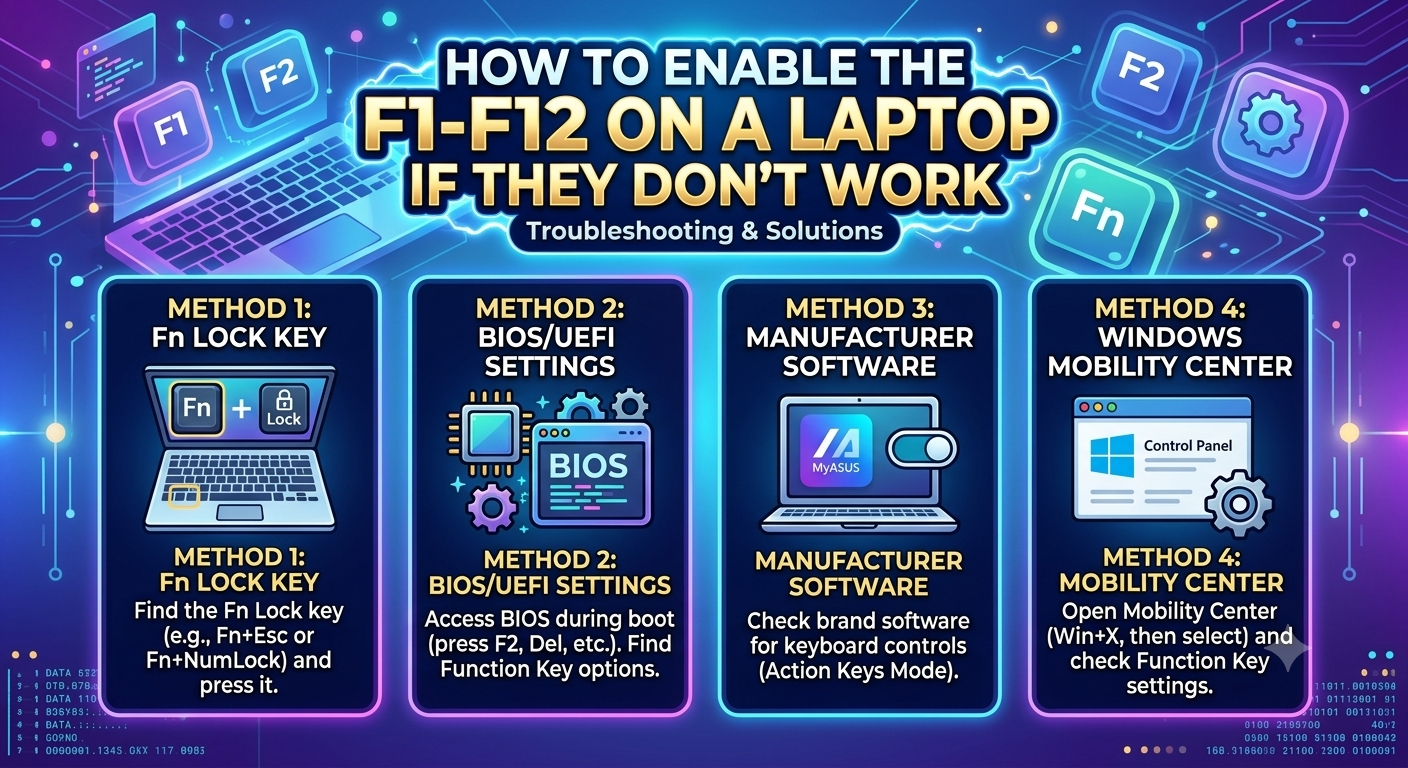
Some laptop owners who need to use the top row keys from F1 to F12 in some programs may find that they do not work as expected: instead, only control functions such as changing the volume or brightness, switching airplane mode, and others work.
This instruction explains why this happens and how to use the specified keys in a standard way, if necessary.
Two modes of operation for F-keys on a laptop

On most modern laptops, the top row keys have two modes of operation:
- Like the regular F-keys F1-F12, with actions similar to those on a PC, where, for example, F1 usually brings up help, and F5 means “refresh”.
- Function keys control laptop functions and settings: volume and brightness control, disabling the touchpad, turning on airplane mode, and more.
Many laptops today have the second mode enabled by default. If it’s not working for you, there’s a separate guide on the website:
This mode can be changed as needed, either on a one-time basis if you only need to use F1 – F12 occasionally, or permanently if you want the mode you want to use to be the default.
Methods for enabling the F1–F12 keys
If you only need one of the F1 – F12 keys for non-multimedia purposes, but when pressed, it controls the laptop’s functions, you can simply press the desired key in combination with the Fn key on the keyboard (usually located in the bottom row on the left).
If you need to permanently change the function key mode, this is usually done either in the BIOS/UEFI or, for some laptop models, in proprietary configuration utilities as an additional method. Sometimes, you can also permanently switch the mode using a keyboard shortcut.
In the first case, you’ll need to enter the BIOS/UEFI by pressing the appropriate key (usually F2) when turning on the laptop. Then, find the options responsible for the F-key mode. These may have the following locations and names (variations are possible, depending on the specific laptop). Here are some example locations:
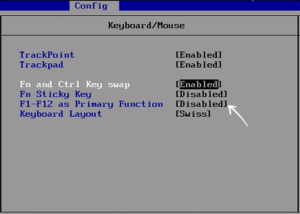
- Lenovo: Configuration – HotKey Mode, sometimes Config – Keyboard/Mouse – F1-F12 as Primary Function.
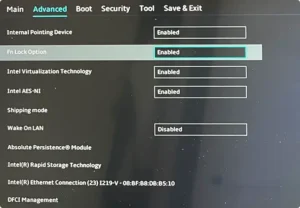
- ASUS, Dell: Advanced — Function Key Behavior or Fn Lock Option (in this option, you should set it to Enabled to be able to change the behavior of the keys using a combination, which we will discuss below).
- Acer: Main – Function key behavior.
- HP: System Configuration – Action Keys Mode.
Typically, in this section, you can choose from only two options: the one selected corresponds to the current operating mode, and the second option is the opposite, so it is usually not difficult to figure it out.
On some laptops, you can switch the operating mode for all subsequent keystrokes using a key combination directly in the OS: Fn + Esc (if the Esc key has an image of a lock with the text Fn, or the combination is depicted on the Fn key), Fn + Caps Lock (on some HP).

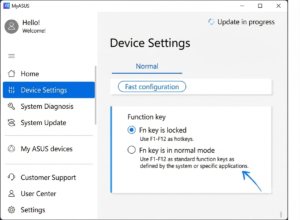
Utilities such as MyASUS, Lenovo Vantage, and others may also have an option to switch the operating mode of the top row of keys:
I would also like to point out that everything described above applies to properly functioning keyboards; sometimes the complete inoperability of individual keys can be caused by hardware malfunctions.
I hope this guide helped you understand how the F1–F12 keys work. If you have any questions, please ask them in the comments below.
FAQ
Q1: Why do my laptop’s F1–F12 keys adjust volume or brightness instead of performing standard actions?
A: Modern laptops feature two operating modes for the top row of keys: standard F1–F12 actions (like refreshing a webpage or opening a help menu) and multimedia control functions (like adjusting screen brightness or volume). On most modern laptops, manufacturers enable the multimedia mode by default to give quick access to system settings. Because of this, pressing a key directly triggers the hardware function rather than the traditional F-key action. You can easily switch between these modes temporarily or permanently based on your preferences.
Q2: How can I use standard F1–F12 functions on a temporary, one-time basis?
A: If you only need standard F1–F12 functions occasionally, you do not need to change any system settings. Hold down the Fn key (usually located in the bottom-left corner of your keyboard) while pressing the desired F-key. For example, pressing Fn + F5 will execute a standard page refresh if pressing F5 alone controls your screen or keyboard backlighting. This method allows you to use standard actions on demand while keeping media shortcuts as your default.
Q3: Is there a quick keyboard shortcut to switch the default behavior of the F-keys?
A: Yes, many laptop models feature an “Fn Lock” keyboard shortcut that lets you permanently toggle the primary key mode within Windows. On many laptops, pressing Fn + Esc toggles Fn Lock if the Escape key has a small padlock icon with “Fn” printed on it. On certain HP models, pressing Fn + Caps Lock accomplishes the same function. Once activated, your top row keys will perform standard F1–F12 functions by default without needing to hold down the Fn key each time.
Q4: How do I permanently set the F1–F12 keys to standard mode in the BIOS/UEFI?
A: To change the default functionality at the system level, restart your laptop and enter the BIOS/UEFI menu (typically by pressing F2 or another designated key as the laptop turns on). Once inside, navigate to the system settings menu and look for options such as Action Keys Mode (HP), HotKey Mode (Lenovo), or Function Key Behavior (Acer, ASUS, Dell). Switch the setting from hotkey/multimedia mode to standard key mode, then save your changes and exit. Your top-row keys will now function like the traditional F1–F12 keys every time you start your computer.
Q5: Can I change function key behavior using pre-installed software instead of BIOS?
A: Yes, many modern laptops allow you to switch key behavior through manufacturer-specific control software running in Windows. Applications such as Lenovo Vantage or MyASUS include built-in settings to toggle the top row between media hotkeys and standard function keys. Changing the setting in these utilities updates the hardware behavior instantly, saving you from having to restart and enter the BIOS menu. Simply open your brand’s companion app, locate the input/keyboard section, and select your preferred mode.
About the Author